
Layouts
A layout is an arrangement a space can be set up in: theatre, boardroom, cabaret, classroom, or whatever you use. Staff choose one when they make a booking, so whoever sets the room up knows what is wanted.
Layouts are optional. If your spaces are only ever arranged one way, you can ignore them.
The layout list
Section titled “The layout list”Layouts are at Settings → Layout.
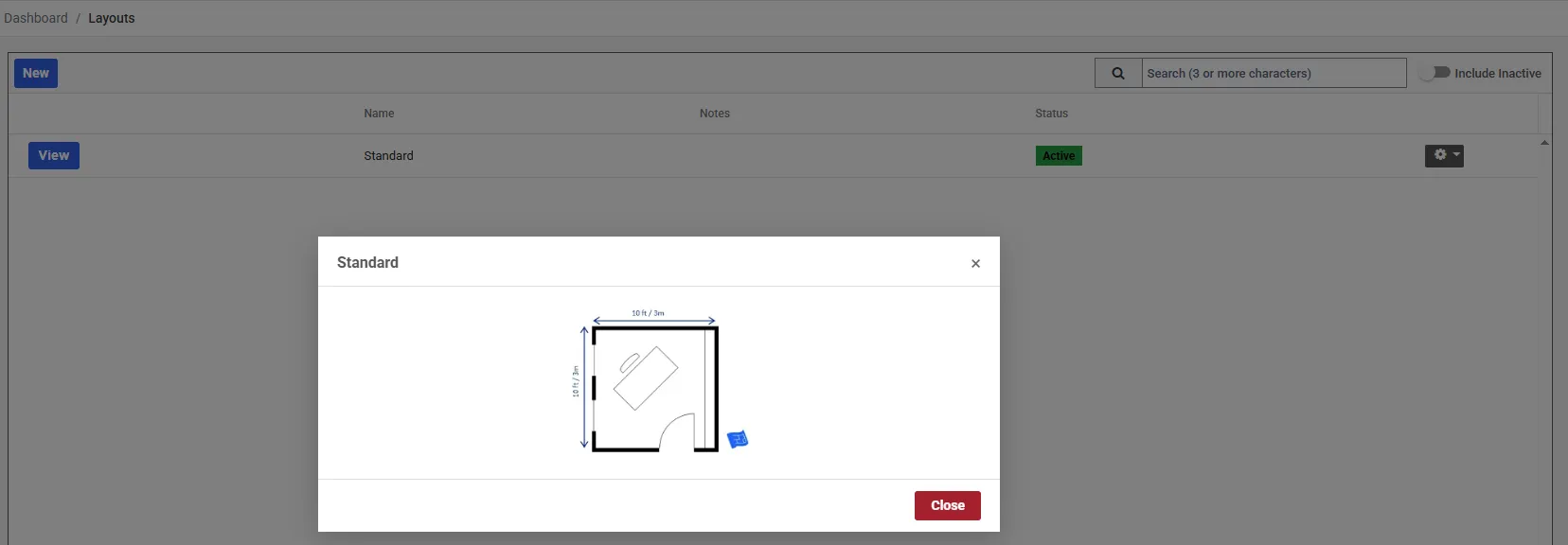
The View button beside a layout opens its picture, so you can check the arrangement without opening the layout.
Search needs at least three characters, and Include Inactive adds deactivated layouts to the list. The Actions button on each row offers Detail, Deactivate or Activate, and Delete.
Adding a layout
Section titled “Adding a layout”Choose New, fill in the fields and choose Update.
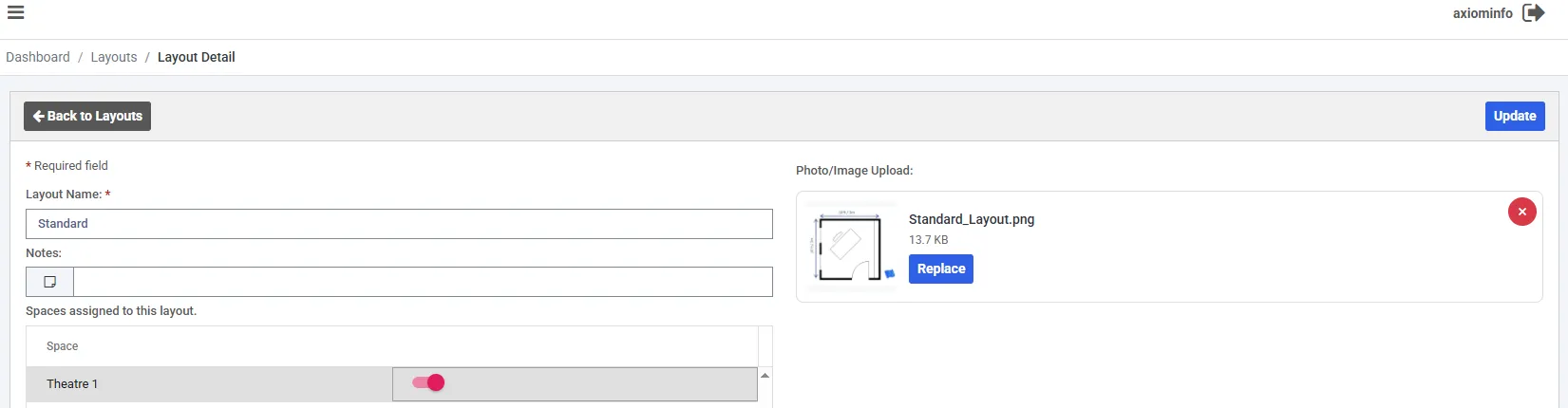
Fields marked with a red asterisk are required.
| Field | What it does |
|---|---|
| Layout Name , required | What staff pick on a booking, so make it recognisable: “Theatre”, “Boardroom” |
| Notes | Anything the person setting up should know |
| Spaces assigned to this layout. | A switch for each space. Turn it on for every space that can be set up this way |
| Photo/Image Upload | A plan or photo of the arrangement. PNG or JPEG, up to 2 MB |
Once a picture is uploaded, Replace swaps it for another and the red cross removes it.
Assigning layouts to a space
Section titled “Assigning layouts to a space”The same assignment can be made from the other side. A space’s Overview tab, at Facility → Space, has a grid headed Layouts assigned to this space.
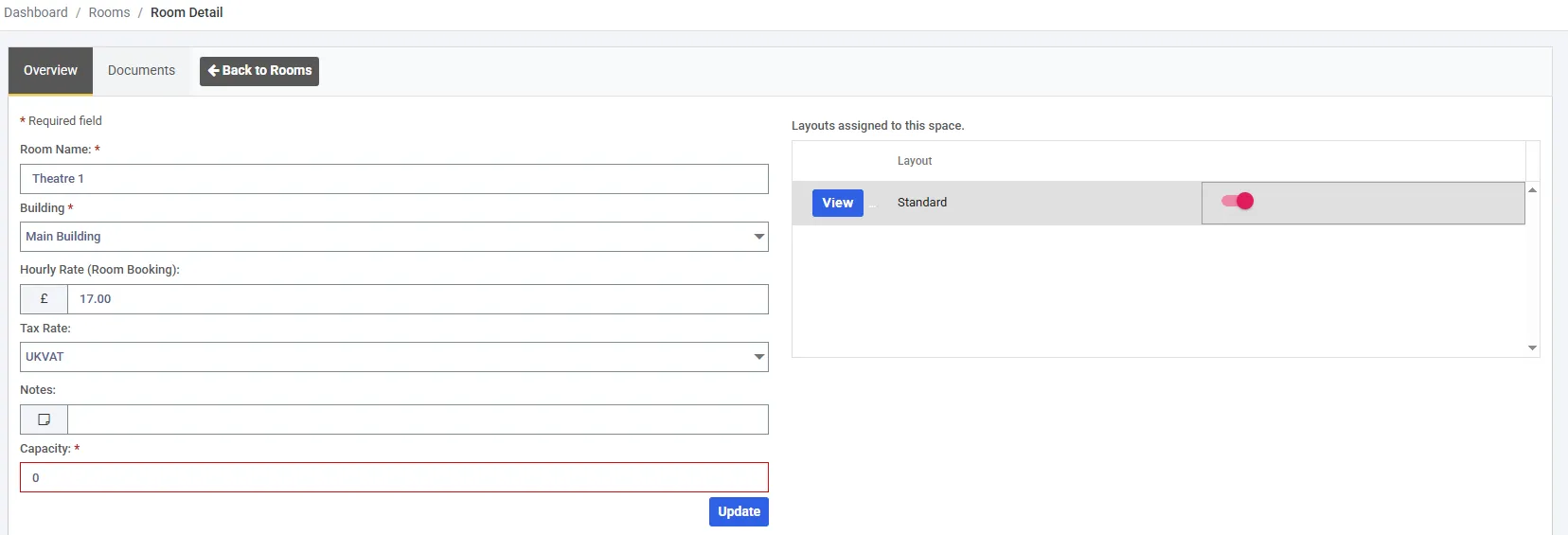
Turning a switch on in either place has the same effect. Use whichever is quicker: the layout, to give one arrangement to several spaces, or the space, to give one space several arrangements.
Choosing a layout on a booking
Section titled “Choosing a layout on a booking”The space booking panel has a Layout dropdown beside Maximum Attendees. It lists only the layouts assigned to the space you have chosen, so it is empty until a space is picked, and stays empty for a space with no layouts. You don’t have to choose one.
Bookings with a layout show a picture icon in booking lists, such as a client’s booking history. Select it to see the layout’s picture.
Customers booking through your portal cannot choose a layout. If one matters, set it on the booking yourself.
Deactivating or deleting a layout
Section titled “Deactivating or deleting a layout”Deactivate takes a layout out of use. It stops being offered on bookings, and Activate brings it back.
Delete removes the layout, its picture, and its assignment to every space. There is no way to bring it back in the app.