
Making a session booking
A session booking puts a session provider - the person or organisation delivering the session - in the diary for a period of time, and attaches the people attending.
It looks like a space booking and bills like the opposite of one. Read the billing section below before you set up anything you intend to charge for.
Open the calendar
Section titled “Open the calendar”In the left-hand menu, under Modules, choose your session calendar. It carries your own wording, so it may read Class Booking or Appointment Booking.
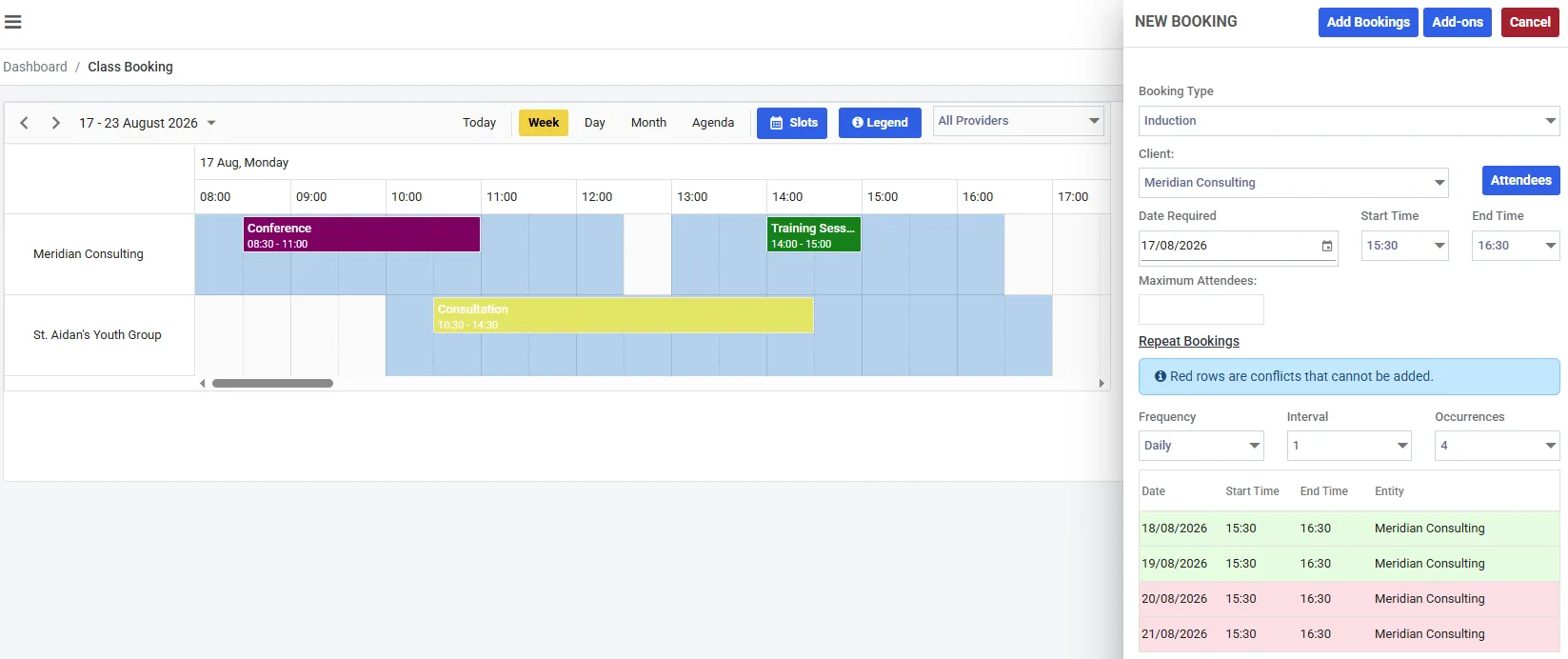
A week in an account that calls sessions Classes. The rows are session providers, not rooms - and the shaded bands behind them are that provider’s slots.
Each row is a session provider, not a room. Views, colours and the legend work exactly as they do on the space calendar - with one difference in the toolbar: the filter reads All Providers rather than All Buildings, because there are no buildings to filter by.
Sessions need slots too - added with the Slots button in the toolbar. Without one covering the time you want, the booking is refused with “No available slot at the selected time for this client.”
Slots belong to the provider, not to a room. If someone delivers sessions on Tuesdays and Thursdays, that is what their slots should say - it is how the calendar knows when they are available.
Slots and availability covers setting them up. Everything there applies to sessions, with the provider standing in for the space.
Starting a booking
Section titled “Starting a booking”Click the day and time you want on the provider’s row. A NEW BOOKING panel slides in from the right.
The “Client” field is the session provider
Section titled “The “Client” field is the session provider”This is the single most confusable thing on the screen.
The field is labelled Client, and on a session booking the dropdown only offers clients flagged Is Session Provider. So it is asking who is delivering this session, not who is buying it.
Open the dropdown and each provider carries their hourly rate beside their name, because that rate is what the session costs. It shows in the list rather than on the field, so you see it while choosing rather than afterwards.
The people buying are the attendees.
If the provider you want is missing from the list, the client record has not been flagged as a session provider - see adding session providers.
The fields
Section titled “The fields”Booking Type - pick this first. Open the dropdown and each type shows what it carries, so you can tell them apart without leaving the panel: approval, a £€ set fee, or a fixed duration. A type with none of those carries no badge.
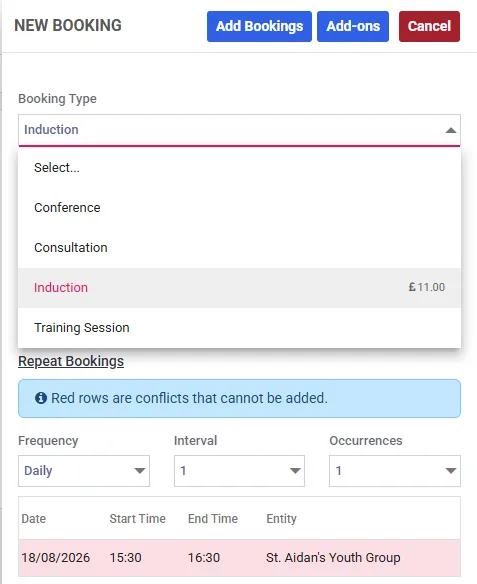
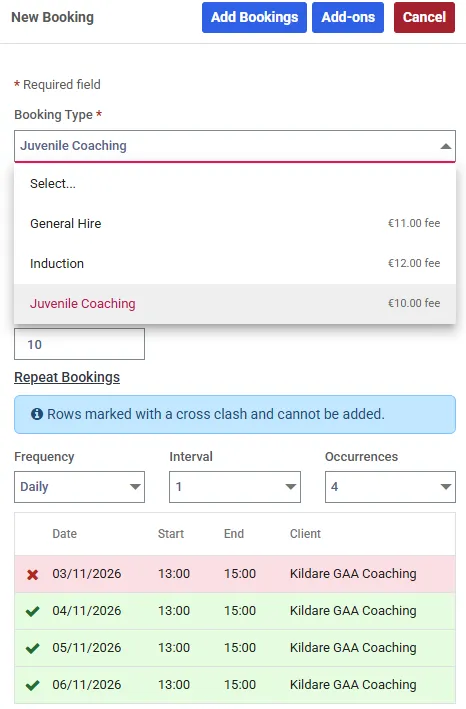
A fixed duration hides the End Time field and derives it instead.
Client - the session provider, as above.
Date Required, Start Time, End Time - when it runs.
Maximum Attendees - how many places the session has.
Open Booking - allow portal clients to join. Only shown if you have the portal switched on for sessions. This is the one that turns a session into something the public can buy a place in.
There is no Building, Space or Layout on a session booking. A session is booked against a person, not a room. If it also needs a room, book the room separately and link the two - right-click either booking and choose Link.
Attendees are the customers
Section titled “Attendees are the customers”The Attendees button sits beside the Client field and shows a running count. It stays disabled until you have chosen a provider - “Please select a client first.”
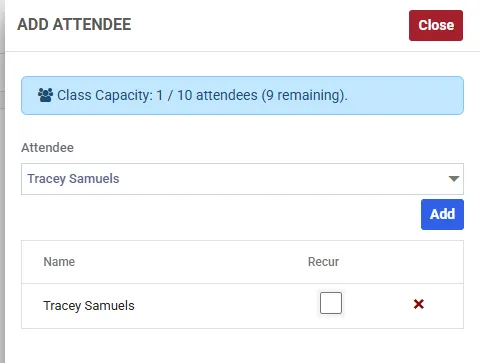
The same attendee panel the space module uses - the capacity banner just carries your session wording. Here every name in that list is someone who will be invoiced.
The panel itself is the same one the space module uses. Two things carry over:
- The banner counts places as you go - “Class Capacity: 1 / 10 attendees (9 remaining).” At the limit it turns red and the Add button is disabled; with no cap set it reads “No capacity limit.”
- The Recur tick is unticked by default. On a session that repeats, an attendee is added to the date in front of you and no other unless you tick it - so a weekly class needs Recur ticked for the regulars, or only the first week has anybody in it
Because each name is an invoice, that Recur tick is a money decision on a session, not just a scheduling one.
Places
Section titled “Places”Maximum Attendees caps the session. Unlike a space booking, there is no room behind it, so:
- Leaving it blank genuinely means unlimited. There is no capacity to fall back on
- Set it if the session has a real limit - a treatment room takes one, a class takes twelve
If you already have more attendees on the booking than the cap allows, the panel tells you - “You have 15 attendees but this booking allows a maximum of 12.” - and blocks the save until it is resolved.
Add-ons are priced per attendee
Section titled “Add-ons are priced per attendee”Add-ons is the button at the top of the panel.
Open bookings
Section titled “Open bookings”Ticking Open Booking publishes the session in your customer portal for people to join themselves.
Worth understanding before you tick it:
- Attendees become members of the public, not one client’s people. They are not added to anybody’s roster
- Each joiner is invoiced for their own place. If you have card payments switched on they pay at the point of joining; if not, the invoice is raised unpaid and you collect it however you normally would
- An open session can legitimately have no attendees at all until someone joins
- A booking type that requires approval cannot be joined from the portal
Only your staff can create an open booking. Portal customers can join one; they can never make one.
Saving
Section titled “Saving”Choose Add Bookings. The booking appears on the provider’s row in its booking type’s colour.
Confirmation emails go out automatically - one to each attendee, and one to the session provider so they know they have been booked. You can turn them off for your whole organisation under Settings → General → Email Settings.