
Credit notes and adjustments
Axiom never edits a document you have already given a customer.
When something changes after an invoice has been issued, the change becomes a new document attached to the original. The original stays exactly as it was sent.
| Document | Numbered | Raised when | Shown on the invoice as |
|---|---|---|---|
| Credit note | CN-001001-TRA | the change reduces the charge | − under CREDIT NOTES |
| Supplementary invoice | SUP-001001-TRA | the change increases the charge | + under SUPPLEMENTARY INVOICES |
Each type has its own numbering sequence, so a credit note never takes a number out of your invoice run.
You do not raise these by hand
Section titled “You do not raise these by hand”There is no “create a credit note” button, and that is deliberate. A credit note in Axiom always corresponds to something that actually happened to a booking.
They are produced automatically when you edit or cancel a booking that sits on a finalised invoice. Shorten a hire, drop an add-on, cancel three dates out of a weekly series - each of those is a change to what you are owed, and Axiom writes the document that records it.
One document per change, not one per line
Section titled “One document per change, not one per line”An edit that both adds and removes is netted first. Extend a booking by an hour and drop a £40€40 add-on, and you get one document, not two - a credit note if the net effect is a reduction, a supplementary if it is an increase.
The same holds across invoices. Cancelling bookings that appear on several invoices produces one credit note per invoice, not one per booking.
What is on a credit note
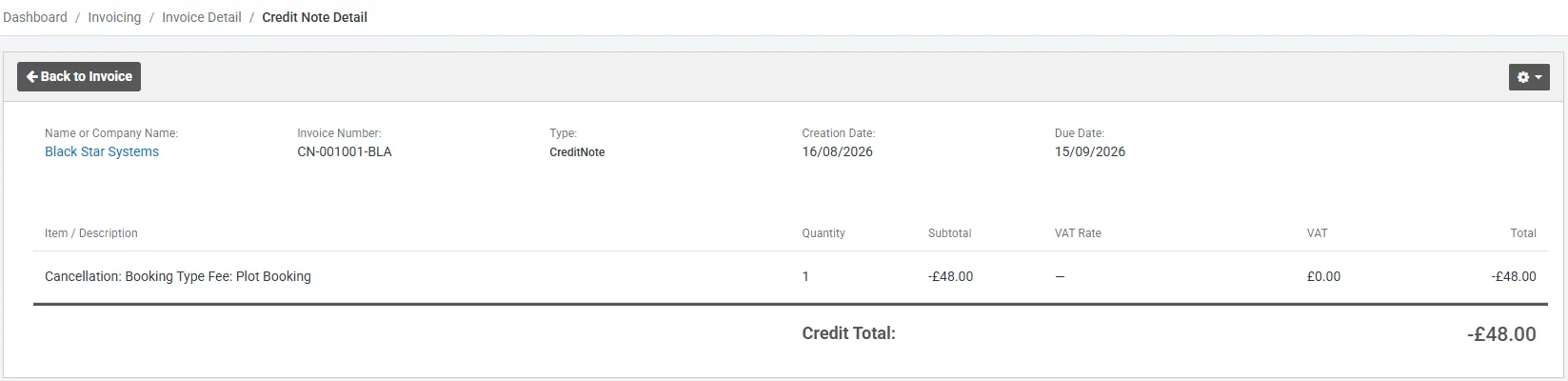
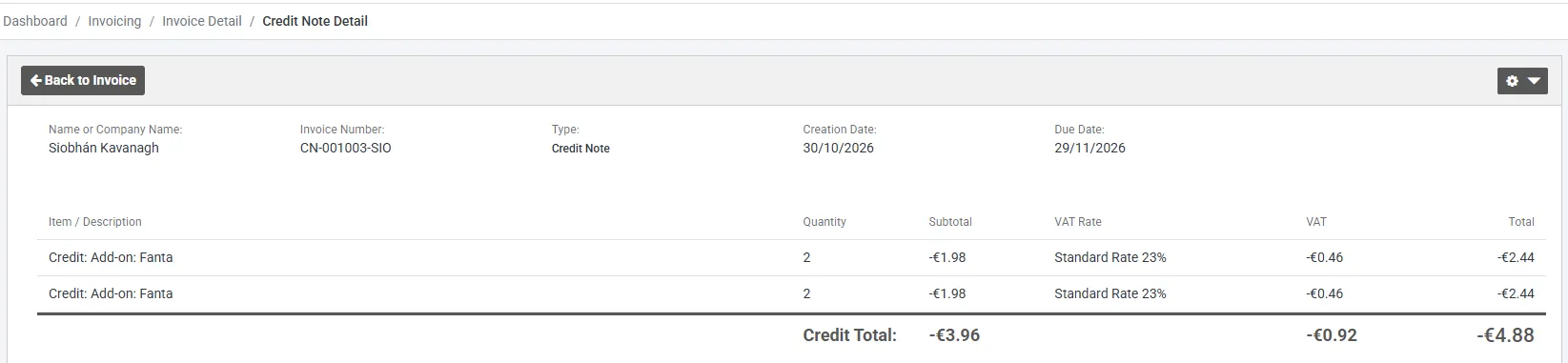
Section titled “What is on a credit note”The same six columns as an invoice - Item / Description, Quantity, Subtotal, VAT Rate, VAT, Total - and a Credit Total at the foot.
Descriptions carry a prefix naming what happened, in front of the original wording, so the note reads back to the booking it came from:
| Prefix | Means |
|---|---|
Cancellation: | the booking was cancelled |
Credit: | the charge went down - a shortened booking |
Removed: | an add-on was taken off |
Additional Charge: | the charge went up (these appear on supplementaries) |
Each line carries its own tax, copied from the line it is adjusting. A credit note against a line that carried 20% VAT reverses the VAT as well as the net - you do not have to work it out or correct it afterwards.
What it does to the invoice
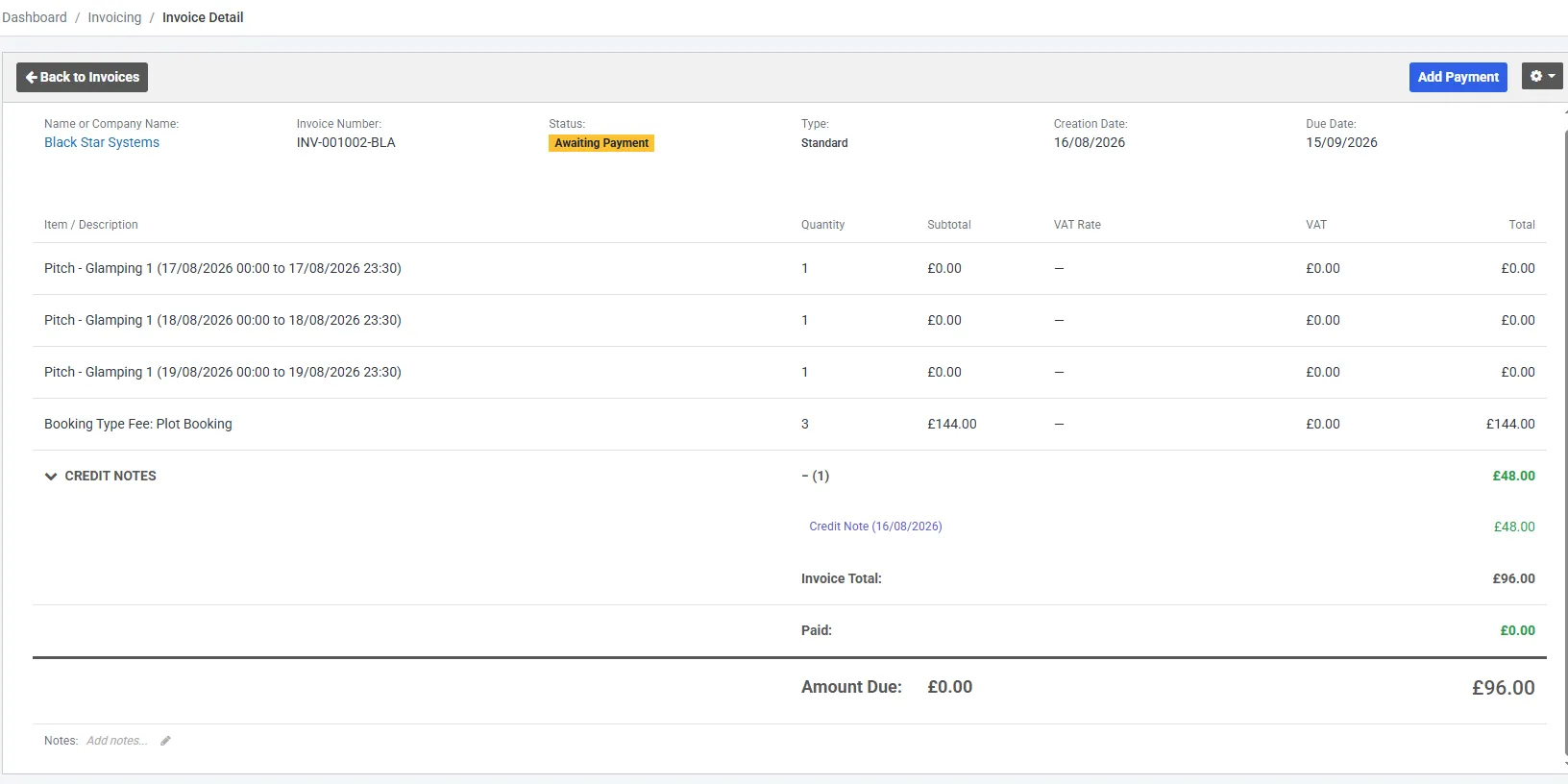
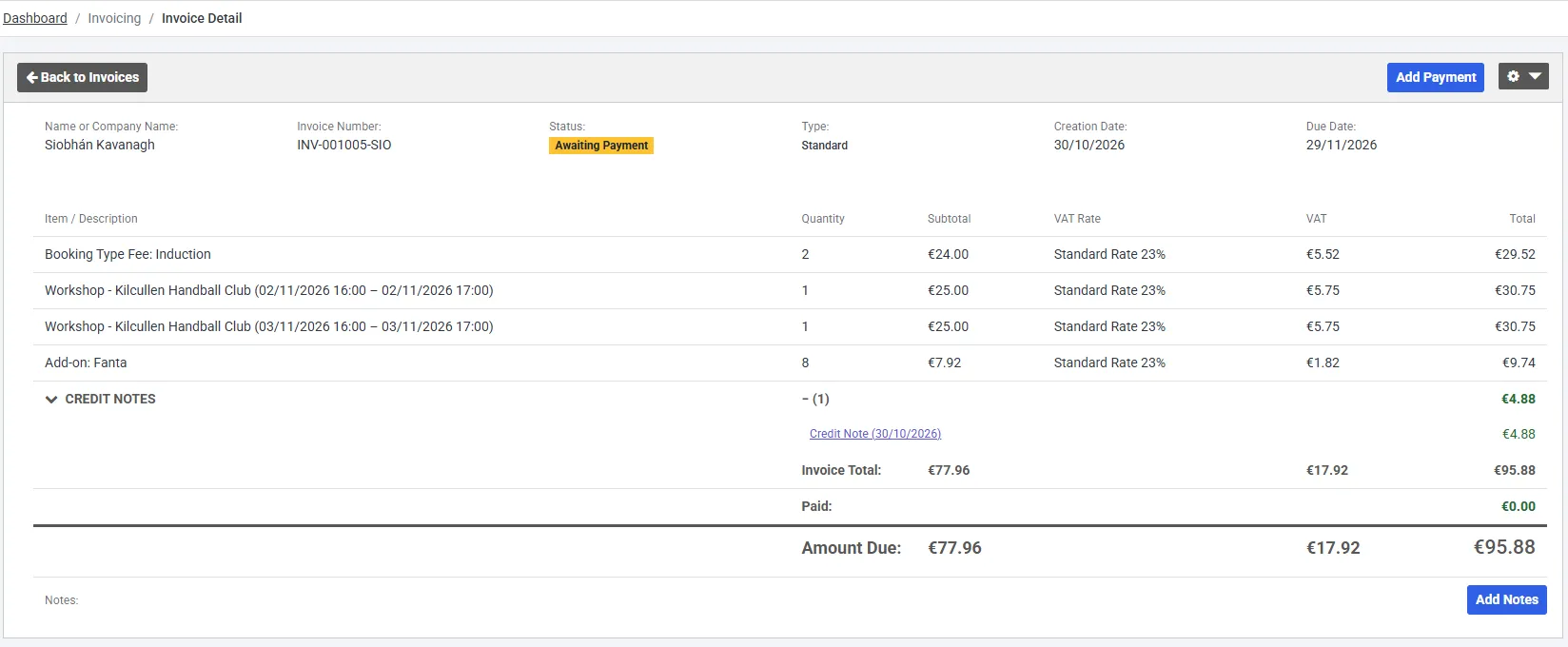
Section titled “What it does to the invoice”The invoice screen shows a live figure: the original, plus any supplementaries, minus any credit notes. Amount Due follows from that.
The original PDF is unchanged and always will be. A customer holding a £100€100 invoice still holds a £100€100 invoice; your screen shows £60€60 and a credit note for £40€40 sitting beneath it.
Whether a refund is owed
Section titled “Whether a refund is owed”This is the part worth reading twice. What the credit note does next depends entirely on whether the customer had already paid.
| The invoice had | The credit note is created as | What happens |
|---|---|---|
| No payments on it | Credited | The charge is reversed and there is nothing left to do |
| Payments already recorded | Draft | The invoice becomes overpaid - you owe the customer money |
In the second case the invoice’s Amount Due goes negative, and the button on the invoice changes from Add Payment to Process Refund. Recording that refund closes the credit note off automatically.
See recording payments for the refund panel.
Supplementary invoices
Section titled “Supplementary invoices”The mirror image, and simpler. A supplementary is created already Complete, dated 30 days out, and adds to what is owed on the parent invoice.
It is not paid separately. Its PDF says so:
This is a supplementary invoice. All payments are applied to the parent invoice.
Credit notes carry the equivalent line.
Finding them
Section titled “Finding them”Credit notes, supplementary invoices and deposit invoices do not appear in the Tools → Invoicing list. That list is standard invoices only, so one booking’s paperwork does not spread across half a dozen rows.
Open the invoice they belong to and expand the CREDIT NOTES or SUPPLEMENTARY INVOICES section, then click through.
Sending one to the customer
Section titled “Sending one to the customer”The actions menu on a credit note offers Save Receipt (PDF) and Send Receipt (PDF). Both act on the credit note itself, despite the wording. You are asked to confirm before anything is sent:
Email credit note CN-001001-TRA to name@example.com? A copy of the credit note PDF will be attached.
If the client has no email address on record, Axiom says so rather than failing quietly.
Checking the arithmetic
Section titled “Checking the arithmetic”Transaction History on the parent invoice lists every movement in order, credit notes and supplementaries included, with the balance before and after each one. It is the place to go when a total is not what you expected.