
Tax rates
A tax rate in Axiom is two things: a name and a percentage. The name is what prints on the invoice beside the figure, so call it what your customer’s accountant would expect to see - UKVAT, Reduced, Zero.
They live under Settings → Tax Rate.


There is no tax rate for an invoice
Section titled “There is no tax rate for an invoice”Tax is set on the thing you sell, not on the invoice and not on the customer. Each line takes its rate from whatever produced it, which is why one invoice can legitimately carry 20% on one line and nothing on the next.
There are four places to set one:
| Where | The field | Applies to |
|---|---|---|
| A space | Tax Rate | the hourly charge for that space |
| A client flagged Is Session Provider | Session Tax Rate | the hourly charge for their sessions |
| A booking type | Set Fee Tax Rate | the set fee line, if the booking type has one |
| An add-on | Tax Rate | that add-on’s line |
Each is a dropdown that starts on Select…, and leaving it there is a real answer: no rate means no tax on that line. The invoice shows a dash in the VAT Rate column.
Adding a rate
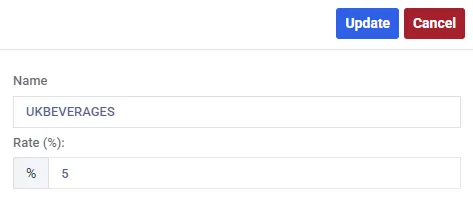
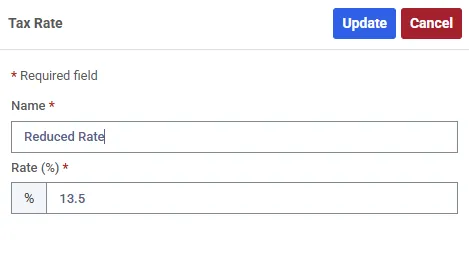
Section titled “Adding a rate”Choose New, and fill in two fields:
| Field | What it means |
|---|---|
| Name | What appears on the invoice. Must be unique |
| Rate (%) | The percentage, as a percentage - enter 20 for twenty percent, not 0.2 |
The list reads it back to two decimal places, so 20 shows as 20.00%.
Reuse a name and it is refused:
Tax Rate name is already in use, please try again.
How the tax is worked out
Section titled “How the tax is worked out”Per line, and then added up - never on the invoice total.
For each line, Axiom multiplies that line’s net amount by its rate and rounds the result to the nearest penny. The invoice’s VAT total is the sum of those rounded figures.
That is why a multi-line invoice can show a VAT total a penny away from what you would get by applying the rate to the subtotal. Both are defensible; Axiom uses the per-line figure because it is the one each line would show on its own.
If no line on an invoice carries tax, the Subtotal and VAT columns stay empty and the invoice shows a single total. Nothing is presented as zero-rated unless it genuinely is.
Changing a rate later
Section titled “Changing a rate later”The rate is frozen onto the invoice line when the invoice is raised - its name, its percentage and the cash amount are all copied at that moment.
So editing a tax rate changes what happens next, and nothing that has already happened.
The same goes for the name. Rename VAT to UKVAT and old invoices carry on reading VAT.
Retiring a rate
Section titled “Retiring a rate”Two options on the row’s gear menu, and they are not interchangeable.
Deactivate
Section titled “Deactivate”The normal way to retire a rate. You are warned first:
Once a Tax Rate is deactivated it will no longer appear anywhere. Are you sure you want to proceed?
A deactivated rate stops being offered. It disappears from every Tax Rate dropdown - on spaces, session providers, booking types and add-ons - so it can no longer be chosen for anything new. It also drops out of the Tax Rates list unless you switch on Include Inactive, and opening it gives you a read-only panel.
Activate puts it back.
Delete
Section titled “Delete”Only possible for a rate nothing has ever touched. Axiom refuses if it is referenced by any space, session provider, booking type or add-on, or if any invoice line has ever frozen a snapshot of it.
In practice that means a rate you have genuinely used cannot be deleted, which is right - deleting it would orphan the tax on documents your customers already hold. The refusal is quiet: the rate simply stays in the list.
Deactivate instead. Delete is there for the rate you created by mistake five minutes ago.
Reading it back on an invoice
Section titled “Reading it back on an invoice”Invoice lines carry VAT Rate and VAT columns, and the rate’s own name is what distinguishes one line from the next - UKVAT 20% on one, a dash on the other. See invoices for the rest of the screen.