
Making a space booking
A space booking puts one client in one space for a period of time. This article covers the whole panel, field by field.
Open the calendar
Section titled “Open the calendar”In the left-hand menu, under Modules, choose your space calendar. It carries your own wording, so it may read Room Booking or Court Booking.
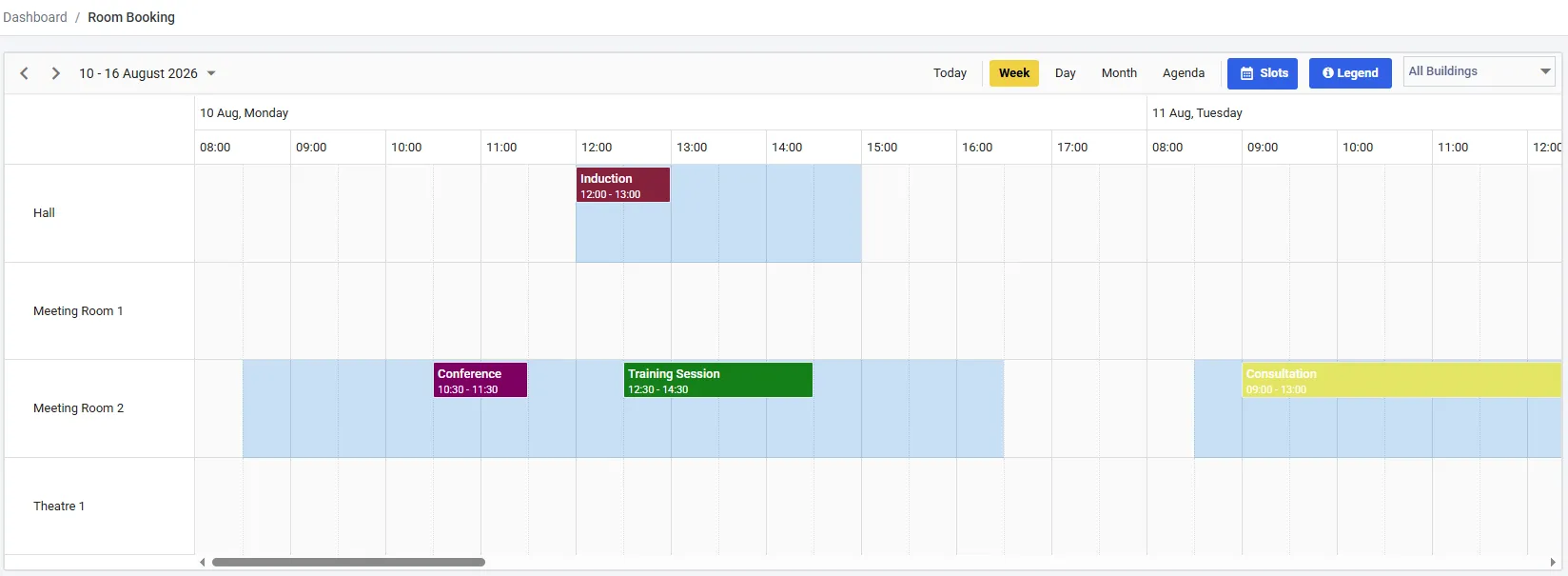
A week in an account that calls spaces Rooms. The shaded bands are slots - the times each room can be booked. Meeting Room 1 has none that day, so nothing can be placed on it.
Reading the calendar
Section titled “Reading the calendar”Each row is a space, so a week view shows every space you have side by side rather than one calendar per room. Views are Day, Week, Month and Agenda, and the week starts on Monday.
Two toolbar controls are worth finding straight away:
- All Buildings filters the rows down to one building. Useful the moment you have more spaces than fit on a screen
- Legend explains the colours and icons
Colours and icons are not decoration. The legend covers each one:
| Legend entry | What it tells you |
|---|---|
| Booking type | The block’s colour is its booking type - the fastest way to read a week |
| Pending approval | A request, not a confirmed booking. Nothing is invoiced yet |
| Buffer | Protected time either side, coming from the booking type |
| Part of a recurring series | Editing or cancelling it will ask you how far the change reaches |
| Detached from a recurring series | It was in a series and has since been changed on its own |
| Linked booking | Paired with a booking in the other module - a class and the room it runs in |
Slots come first
Section titled “Slots come first”A slot is an availability window on a space - “the Main Hall is bookable 09:00–22:00 on these dates”. On the ordinary calendar they are the shaded bands behind the bookings. A space with no shading that day cannot take a booking that day.
Slots are added with the Slots button in the calendar toolbar. Set up once as a repeating series, they need little attention afterwards.
Slots and availability covers the whole of it - adding them, repeating them, the three rules they have to satisfy, and why scheduler hours are a different thing entirely.
Starting a booking
Section titled “Starting a booking”Click the day and time you want on the row for the space you want. A NEW BOOKING panel slides in from the right.
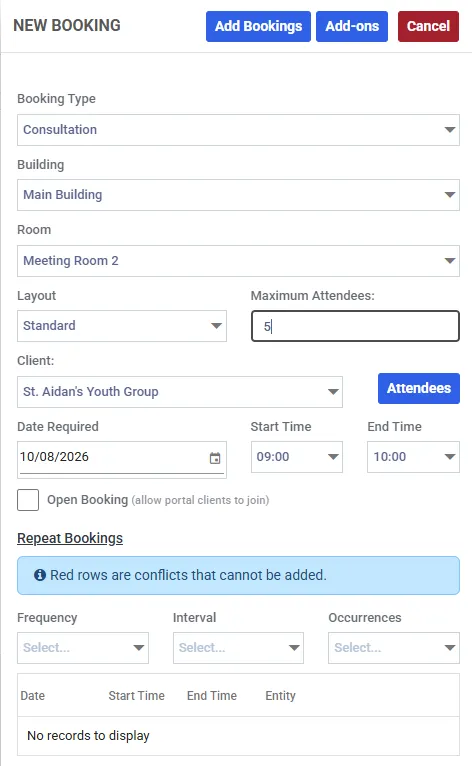
A new booking in an account that calls spaces Rooms. Add-ons and Attendees open panels of their own; the Repeat Bookings section at the foot turns this into a series.
The fields
Section titled “The fields”Booking Type - pick this first, because it fills in several of the others. The dropdown shows what each type carries, so you can tell them apart without leaving the panel:
- Approval - bookings of this type arrive as requests and need approving
- £€ and an amount - the type’s set fee, charged on top of the space’s hourly rate
- N min - a fixed duration
If the type has a fixed duration, the End Time field disappears entirely and the panel tells you “Booking type fixed at 60 minutes - ends 14:00.” The end time is derived, not chosen.
If the type has a buffer, you get “Booking type includes a 30-minute buffer before and after.” Buffer is protected time on both sides of the booking - nothing else can be booked into it, and it is what stops back-to-back hires with no changeover.
Building, then Space - spaces live inside buildings, so choosing the building narrows the space list. Both are prefilled from wherever you clicked.
Layout - only if the space has layouts defined. Theatre, boardroom, cabaret, and so on.
Maximum Attendees - the cap for this booking. See below; it is more subtle than it looks.
Client - who the booking is for, and who gets the bill.
Date Required, Start Time, End Time - prefilled from where you clicked, and editable.
Open Booking - allow portal clients to join. Only shown if you have the portal switched on for spaces. Leave it off for an ordinary booking made for one customer.
Attendees
Section titled “Attendees”The Attendees button sits beside the Client field and shows a running count.
It stays disabled until you have chosen both a client and a space. Hover it and it tells you which is missing - “Please select a space first.” That is deliberate: the attendee list is scoped to the client’s own people, and the number you can add is capped by the space.
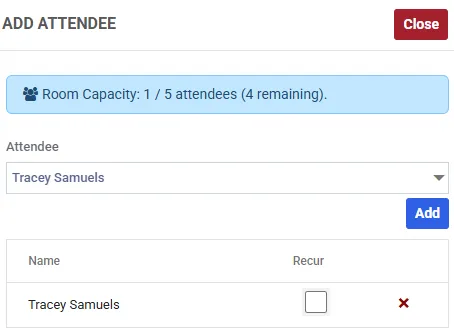
The attendee panel counts places for you as you add people. Recur is unticked by default - see below.
The dropdown offers the selected client’s related contacts - the people you have recorded as belonging to that client on the client screen. Axiom never builds that list on its own; someone has to state the relationship.
The banner at the top counts places as you go - “Room Capacity: 1 / 5 attendees (4 remaining).” When the booking is full it turns red and reads “Maximum capacity reached”, and the Add button is disabled. If the booking has no cap at all you get “No capacity limit.” instead.
The red cross beside a name removes that person from the booking.
The Recur column
Section titled “The Recur column”If the booking is going to repeat, the Recur tick decides whether that attendee comes along to the other dates.
It is unticked by default, so an attendee you add is on the date in front of you and no other. That is the right default for a one-off guest and the wrong one for the regulars, so it is worth a deliberate look before you save a series: tick Recur for anyone who attends every week.
Add-ons work the same way, and have their own Recur tick for the same reason.
Maximum attendees and space capacity
Section titled “Maximum attendees and space capacity”Two different numbers, and they are not interchangeable:
- Capacity belongs to the space. It is the physical ceiling - the room holds 40 people
- Maximum Attendees belongs to this booking. A room that holds 40 can take a booking capped at 12
The cap can never exceed the space’s capacity. Two things follow:
Leaving it blank does not mean unlimited. On a space booking, blank means use the space’s capacity. The room is the limit whether or not you say so.
Moving a booking to a smaller space clamps the cap down, and tells you it has. If the new room is smaller than the number of people already on the booking you will see “You have 15 attendees but this booking allows a maximum of 10.” - and you will not be able to save until you resolve it.
Reducing a space’s capacity later does not retro-validate bookings that already exist. They keep the cap they were saved with until someone edits them.
Add-ons
Section titled “Add-ons”Add-ons is the button at the top of the panel, and it carries a count once you have picked some. Add-ons are chargeable extras attached to the booking - equipment, catering, staffing.
On a space booking the quantity and price are exactly what you enter. The whole charge goes on the client’s invoice.
Saving
Section titled “Saving”Choose Add Bookings.
The booking appears on the calendar in its booking type’s colour, with any buffer reserved either side.
A confirmation email goes out automatically - to the client, and to any attendees you added. The attendees’ copy leaves out the money: they are not paying for it, so they are not told what it cost. You can turn confirmations off for your whole organisation under Settings → General → Email Settings.
If the booking type requires approval, it arrives pending instead - marked as such on the calendar, with no invoice raised yet.
Who gets charged
Section titled “Who gets charged”That is worth knowing before you model something as a space booking. If you need to charge each person individually, that is a session booking, where the billing works the other way round.
Making a session booking, or editing and cancelling once a booking has to change.