
Taking your first booking
Everything is in place: a space or a session provider, and a booking type. Time to use it.
Open the calendar
Section titled “Open the calendar”In the left-hand menu, under Modules, choose your space or session calendar. These carry your own wording, so they may read Room Booking and Class Booking rather than Space and Session.
Each opens a calendar of what’s already scheduled, with Week, Day, Month and Agenda views. Pick the day and time you want and start a new booking - a New Booking panel slides in from the right.
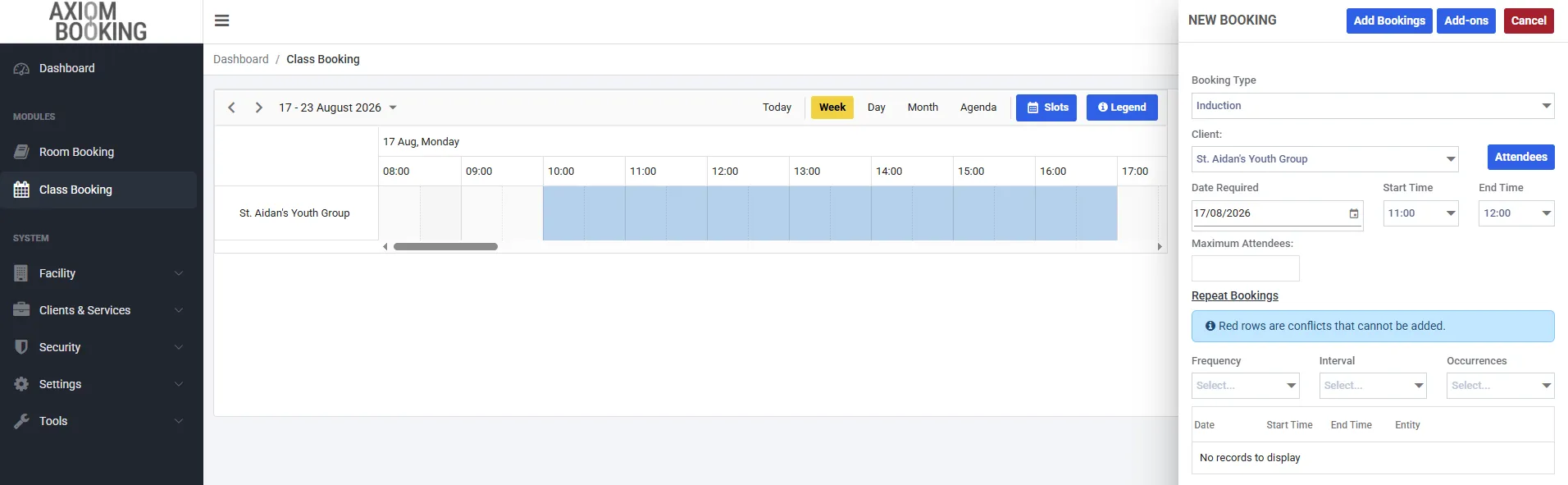
The New Booking panel, in an account that calls sessions Classes. The row on the calendar is the session provider.
Filling it in
Section titled “Filling it in”Booking Type - sets the default duration, any set fee, the buffer either side and the calendar colour, all from what you configured in booking types. You can still adjust the times afterwards.
Client - this field means different things in the two modules. On a space booking it is who the booking is for, and who gets the bill. On a session booking it is the session provider delivering the session - the dropdown offers only clients flagged Is Session Provider - and the people being billed are the attendees, individually. The Attendees button beside it is where you add them either way.
Date Required, Start Time, End Time - when it runs. Prefilled from wherever you clicked on the calendar, and editable.
Maximum Attendees - the cap for this booking specifically. It can be lower than the space’s capacity; a room that holds 40 can take a booking capped at 12.
Layout - on space bookings only, if the space has layouts defined.
Add-ons - the button at the top of the panel, for chargeable extras attached to this booking.
Repeating a booking
Section titled “Repeating a booking”Repeat Bookings turns one booking into a series: set a Frequency, an Interval and a number of Occurrences, and every date it would create is listed below before you commit.
Watch that list. Any date that clashes with something already booked is shown as a red row, and those are skipped rather than added - so a weekly series across a period you’re already partly booked will quietly produce fewer bookings than you asked for. The list is where you find that out.
Open Booking
Section titled “Open Booking”There’s a checkbox labelled Open Booking, described as allow portal clients to join.
Leave it off for an ordinary booking made on behalf of one customer. Tick it and the booking becomes visible in your customer portal for people to join themselves - which is what you want for a class, a public session, or anything sold by the place rather than the whole.
It’s worth understanding before you tick it: an open booking is offered to the public, so its attendees are members of the public rather than one client’s own people.
Save it
Section titled “Save it”Choose Add Bookings. The booking appears on the calendar in its booking type’s colour, with any buffer reserved either side of it.
The confirmation
Section titled “The confirmation”Axiom sends a booking confirmation email automatically.
If you’d rather it didn’t, it can be turned off for your whole organisation under Settings → General → Email. Leave it on unless you have a reason - it’s the thing that stops customers ringing to ask whether their booking went through.
Cancellations and changes are emailed automatically too, from the same tab. Invoices and receipts are not - those are always sent by hand.
What next
Section titled “What next”That’s the core loop: set up what you rent or deliver, classify it with a booking type, and book it.
Taking Bookings picks up from here and covers the rest of it - repeating a booking, attendees, add-ons, letting customers join a booking themselves, approvals, and changing or cancelling something after the fact.
Beyond that, the areas most organisations go to next are:
- Invoicing - turning bookings into invoices, and taking card payments through Stripe
- Your customer portal - letting customers book themselves, rather than ringing you
- Users and roles - adding colleagues with the right level of access
Those sections are being written. In the meantime, if something isn’t covered, get in touch and we’ll help directly.