
Editing and cancelling
Bookings change. This article covers what you can change, how far a change reaches when the booking is part of a series, and what it does to any invoice that has already been raised.
The booking menu
Section titled “The booking menu”Right-click any booking on the calendar.
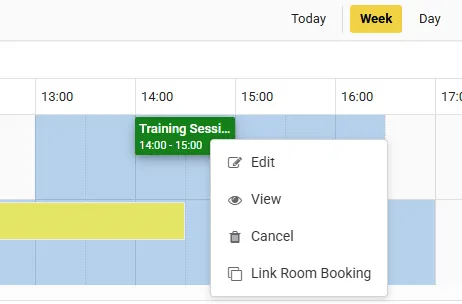
The menu on a session booking. The Link entry names the other module in your own wording - here it offers to link a Room booking.
| Item | What it does |
|---|---|
| Edit | Opens the booking panel so you can change it |
| View | Opens the same panel read-only - every field, plus attendees, add-ons and the series dates |
| Cancel | Cancels the booking |
| Link … Booking | Pairs it with a booking in the other module - a class and the room it runs in |
| Unlink Booking | Breaks that pairing |
What you see depends on your permissions. Someone with view access but no edit permission gets View and nothing else.
View is worth knowing about for its own sake. It is the only place that shows you the whole booking at once - status, attendees, add-ons with their prices, the linked booking, and every date in the series.
Moving and resizing on the calendar
Section titled “Moving and resizing on the calendar”Drag a booking to move it - to another time, another day, or another row.
Drag its edge to make it longer or shorter.
Both are checked against the same rules as a new booking, and refused rather than fudged:
- “Cannot place as booking already exists here.” - something is already there, buffers included
- “No available slot at the selected time…” - there is no availability window covering where you dropped it
- “This booking cannot be resized because its booking type has a fixed duration.” - the type sets the length, so it is not yours to drag
Buffer blocks cannot be dragged at all. They are not bookings; they belong to the booking beside them.
Editing a recurring booking
Section titled “Editing a recurring booking”If the booking is part of a series, choosing Edit asks how far the change should reach before it opens anything.
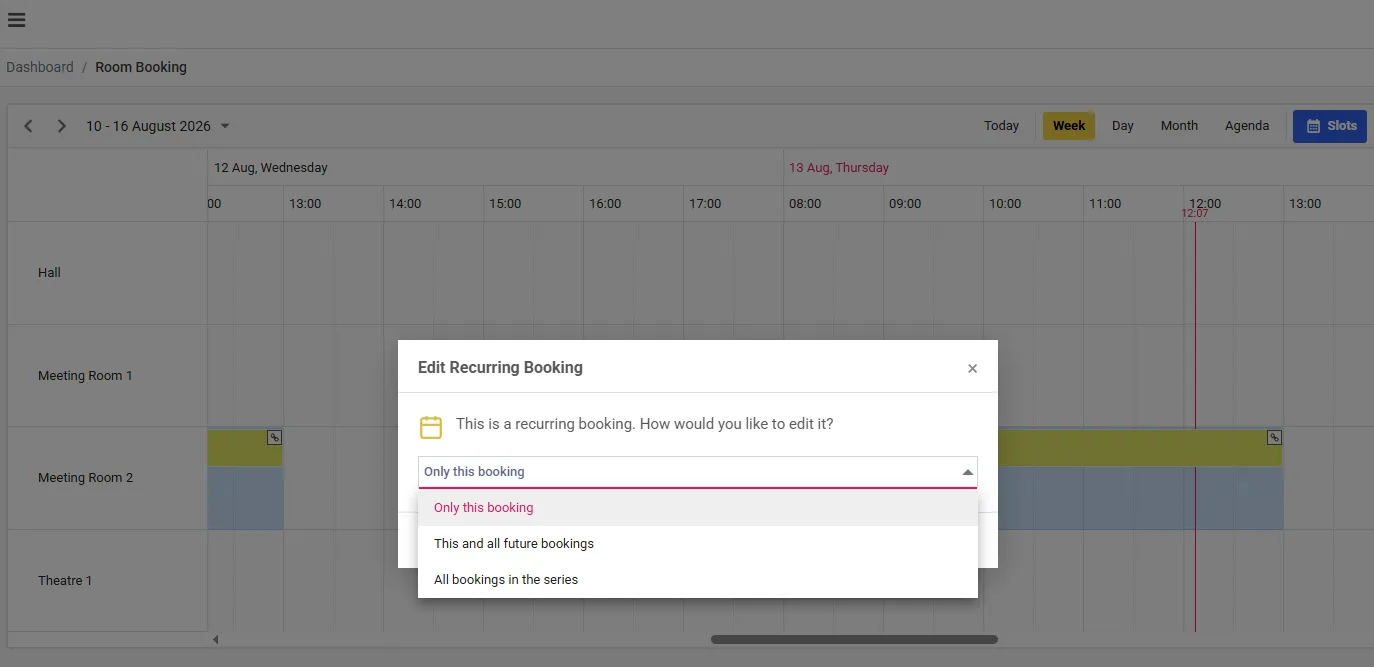
Axiom asks how far the change should reach before it opens the booking. The same three choices appear when you cancel.
| Option | Reaches |
|---|---|
| Only this booking | This one date. It detaches from the series |
| This and all future bookings | This date and everything after it. Earlier dates are untouched |
| All bookings in the series | Every date, past and future |
For the two wider options the panel then shows two tabs:
- Original (Being Replaced) - the dates as they stand now
- New (With Your Changes) - the dates you are about to create
Editing a series is a replace, not a patch. The originals are removed and the new set is created. Check the New tab before you save - rows shown in red are conflicts and will not be added, so a change that collides with something already in the diary quietly produces fewer bookings than you asked for. That list is where you find out.
Cancelling
Section titled “Cancelling”Choose Cancel from the right-click menu.
A standalone booking asks “Are you sure you want to cancel this booking?” and that is that.
A recurring booking asks the same three-way question as editing does - this one, this and future, or all. Choosing all adds a further warning, because it is not recoverable:
Warning: This will permanently delete ALL bookings in this series. This action cannot be undone.
As with editing, if the series is an open booking, cancelling dates you cannot see will remove portal customers from them.
What cancelling does to the invoice
Section titled “What cancelling does to the invoice”Axiom will not quietly edit a document you have already issued.
| The booking was on | What happens |
|---|---|
| A draft invoice | The line is removed and the totals recalculated. If nothing is left, the draft is voided |
| A finalised invoice | A credit note is raised against it. The original is left exactly as issued |
One cancellation produces one credit note, not one per invoice, even when the cancelled bookings span several.
A credit note reverses the charge in your records. If the customer has already paid by card, the refund itself is done by hand - raising the credit note does not send money back to their card.
Editing an approved booking un-approves it
Section titled “Editing an approved booking un-approves it”If your organisation uses the approval system, this one matters.
A booking that was approved and is then materially changed drops back to pending, and is taken off its invoice. It has to be approved again.
That is deliberate rather than awkward: the thing that was approved is no longer the thing that exists. If someone approved a two-hour hire and it is now a five-hour hire, the approval no longer means anything.
Completed bookings cannot be changed
Section titled “Completed bookings cannot be changed”A booking marked Complete is locked. No Edit, no Cancel, no dragging, no resizing - the calendar tells you “This booking cannot be dragged because it is already set to complete.”
Nobody sets that by hand. Axiom marks a booking complete when either of these is true:
- Its invoice has been paid in full
- Its end time has passed and no invoice will ever exist for it - a free booking, or one made while invoicing was switched off
So a booking locks itself once the money side of it is settled, or once it is over and there was never any money involved. If a completed booking genuinely needs correcting, that is an invoicing question rather than a calendar one - see credit notes and adjustments.
Related
Section titled “Related”- Repeating a booking - how a series is built in the first place
- Approvals - why an edit sends a booking back for approval
- Open bookings - the dates you cannot see from the panel
If something is not covered, get in touch and we will help directly.