
Your subscription
This is about what you pay Axiom. Your plan, your card, your invoices from us.
Where to find it
Section titled “Where to find it”Settings → General → Subscription.
There is also a direct route to the same page at /settings/subscription, which matters in one situation: if a payment fails, most of the app is closed off, and that address still works. See when a payment fails.
What you pay for: the bookable item
Section titled “What you pay for: the bookable item”Billing is £2.00€2.40 per bookable item, per month. One item is:
- One active space, or
- One active session provider
That is the whole rule. Two spaces and three session providers is five items, so £10.00€12.00 a month.
Counts as a bookable item
- Each active space
- Each active session provider
Does not count
- Bookings - take as many as you like
- Slots and availability
- Attendees
- Clients on your books
- Staff logins
- Buildings - only the spaces inside them count
- Booking types, add-ons, tax rates
Deactivated and deleted spaces and providers stop counting. There is a minimum of one item, so an account with nothing set up yet still bills at £2.00€2.40 rather than zero.
What the page shows
Section titled “What the page shows”| Row | What it means |
|---|---|
| Status | Which of the states below you are in |
| Trial period | Days remaining, during a trial |
| Active Bookable Items | How many items you are billed for |
| Projected Monthly Cost | During a trial: what you will pay each month, with the items and rate behind it |
| Monthly Cost | Once subscribed: what you pay each month |
| Next Billing Date | Once subscribed: when the next charge is taken |
| A line beneath | What happens next, given your status and your card |
The cost excludes VAT. If VAT is added to your subscription because no VAT number is saved, the page says so beneath the cost.
Below that sits Payment Method, then SMS Credits if SMS is on, with your invoice history alongside.
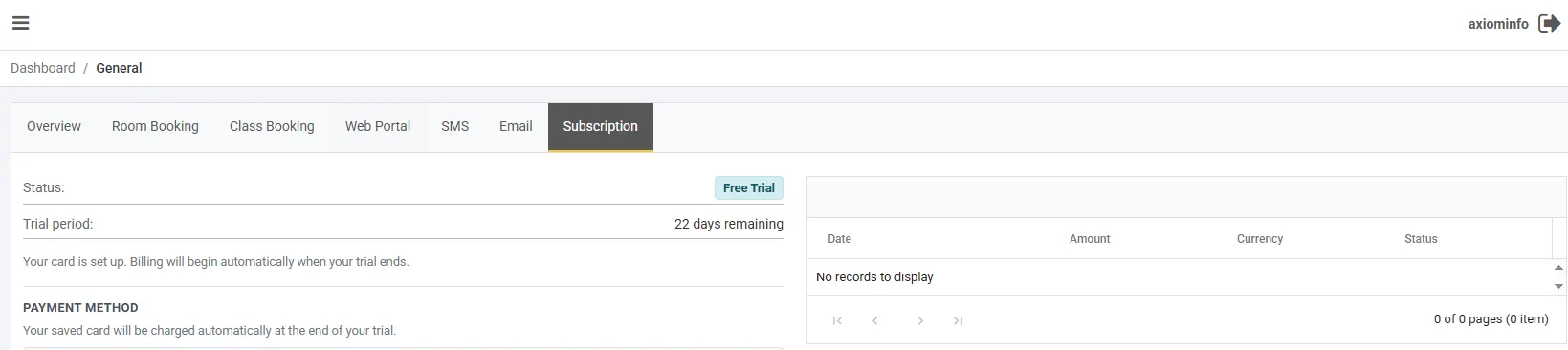
A trial account with a card already saved. The invoice grid is empty because nothing has been charged yet - the first invoice appears when the trial converts.
The statuses
Section titled “The statuses”| Status | What it means |
|---|---|
| Free Trial | Inside your 28 days. Nothing is charged |
| Trial Expired | The 28 days are up and a card is needed to carry on |
| Active | Subscribed and paid |
| Payment Failed | A charge did not go through. The app is restricted until it clears |
| Cancelled | The account is closed |
| Not Subscribed | No subscription on the account. Contact us to start one |
Your trial
Section titled “Your trial”New accounts get 28 days free. No card is needed to start, and none is taken during the trial - see creating your account.
You can add a card at any point during the trial, and it is worth doing before the last day. With one saved the page says “Your card is set up. Billing will begin automatically when your trial ends” and the changeover happens on its own. Without one, the trial expires and the subscription waits for a card before activating.
When the item count changes
Section titled “When the item count changes”Add a space or a session provider and the count goes up. Deactivate one and it goes down. When that reaches your bill depends on whether you are trialling or active.
During the trial, the count tracks whatever you have, up and down, as you go. Nothing is being charged, so it simply stays accurate - which means your first real invoice reflects what you actually ended up with.
Once active, the two directions behave differently:
| Change | When it reaches your bill |
|---|---|
| Adding an item | Straight away, part-way through the current month |
| Removing an item | At the start of the next billing period, not immediately |
So the quantity on an invoice is the highest the account reached during that period, not necessarily what is configured now. If an invoice looks higher than your current setup, that is usually why.
Your payment method
Section titled “Your payment method”Under Payment Method you get the card on file - brand, last four digits and expiry, for example Visa ending 4242, Expires 04/28 - with an Update card button beside it. With no card saved yet the button reads Add Card instead.
Either one opens the same form: enter the details and Save Card, or Cancel to back out.
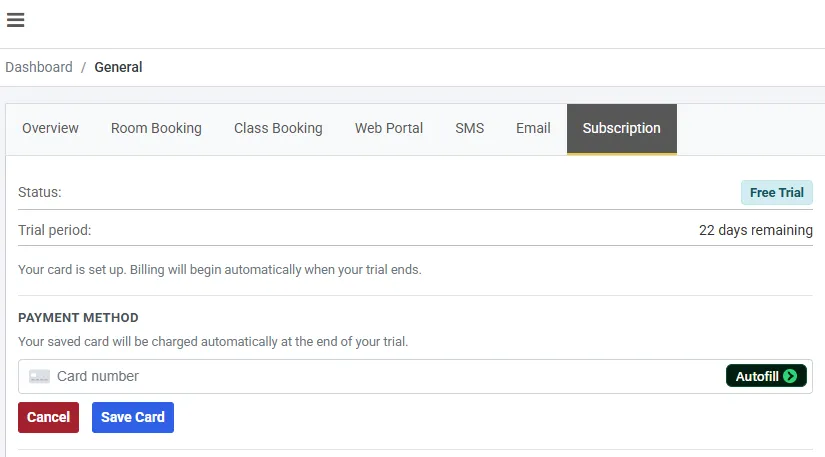
The card field is served by Stripe rather than by Axiom, which is why it looks slightly different to the rest of the form.
The new card replaces the old one as it saves; there is only ever one card on the subscription.
Card details are entered into a field hosted by Stripe, not by Axiom. We never see or store your card number.
When a payment fails
Section titled “When a payment fails”If a subscription charge fails, the status becomes Payment Failed and the app locks down to two places:
- Your Dashboard
- Settings → General → Subscription (or /settings/subscription directly)
Anything else you try to open returns you to the dashboard. Bookings, invoices and the calendar are all unreachable until it clears - so this is worth sorting the day it happens rather than the week after.
To clear it:
- With a card on file - Pay Now retries the outstanding balance against the saved card. Useful when the failure was a temporary decline
- Without one, or if that card is the problem - enter new card details on the same page. Axiom sets the new card as default and then pays the balance in one go
Either way, a successful payment restores the account to Active immediately and the rest of the app comes back.
Invoice history
Section titled “Invoice history”The right of the page lists the invoices Axiom has issued to you, newest first, fifteen at a time:
| Column | Notes |
|---|---|
| Date | Date and time of the invoice |
| Amount | |
| Currency | |
| Status | Paid, open, void and so on |
These are Axiom’s invoices to you, and they are the ones to give your accountant for the cost of the software. Your own sales invoices are somewhere else entirely - Tools → Invoicing.
SMS credits
Section titled “SMS credits”SMS isn’t available in Ireland yet, so an Irish account has no SMS Credits block and nothing to top up.
If SMS is switched on, its balance sits on this page too. SMS is not part of the subscription - it is prepaid credit, bought in advance and drawn down per message.
The panel shows your balance in pounds, the rate per message, and the minimum top-up.
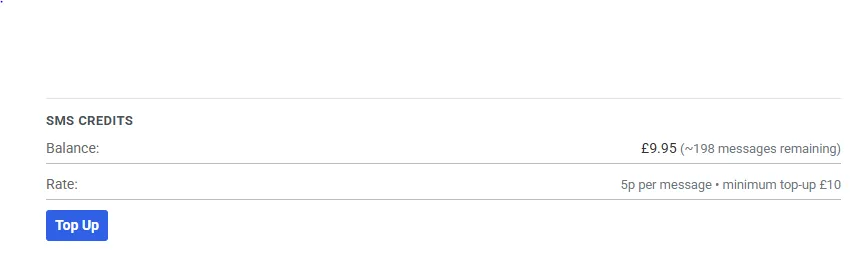
The messages-remaining figure is worked out from your balance and the current rate, not counted separately - so it moves if the rate changes, even though your balance has not.
The rate and the minimum are shown on the panel rather than fixed here, because they can change. At the 5p shown above, a £10 top-up buys around two hundred messages.
To add credit, use Top Up, enter an amount at or above the minimum, and confirm. It is charged to the same card as your subscription, so a card has to be on file first. The balance updates a few moments after the payment confirms rather than instantly - if it has not moved immediately, it is worth a refresh before assuming anything went wrong.
If SMS is switched off you will see the balance but not be able to top up, with a prompt to enable SMS in the SMS tab first.
Closing your account
Section titled “Closing your account”Closing is done on Settings → General → Overview, under Close Account. What happens, what it does to your bookings and how to reverse it are all in the Settings overview.
The part that belongs here is what it does to your billing. Closing is scheduled, not immediate: the subscription is set to end when the period you have already paid for runs out, so no further payment is taken and the account stays usable until that date. Once it passes, the status becomes Cancelled and signing in takes you to a deactivated-account page instead of the app.