
Adding and editing a client
Go to Clients & Services → Client. Choose New to add a client, or Detail on a client’s Actions menu to open one.
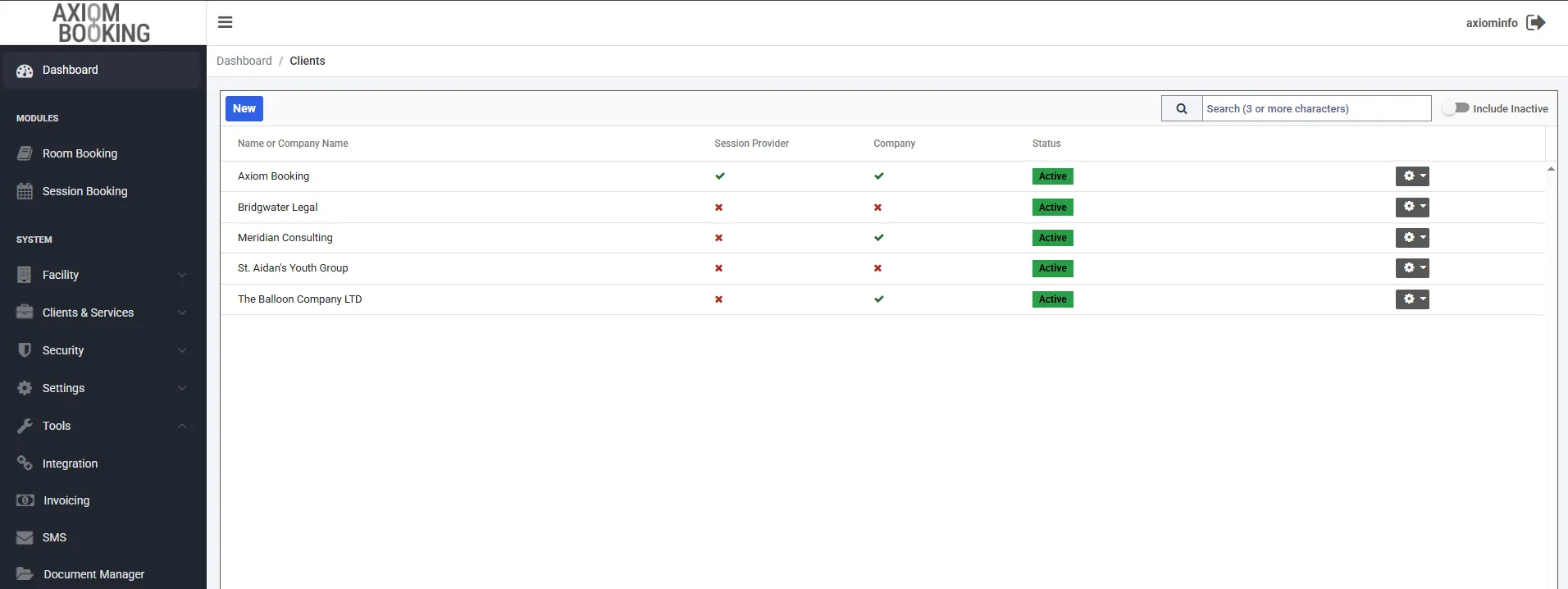
The first row, Axiom Booking, is this account’s own organisation. It is always in the list, and its menu offers no Deactivate or Delete.
Search needs at least three characters, and Include Inactive adds deactivated clients to the list. Deactivating and deleting are explained in the Clients overview.
The row named after your organisation is the record Axiom uses when you book something for yourself, such as a staff meeting or maintenance. Whether it can be picked on a booking is decided by Internal Booking Enabled in Settings.
Adding or opening a client lands you on the Overview tab, which is the record itself.
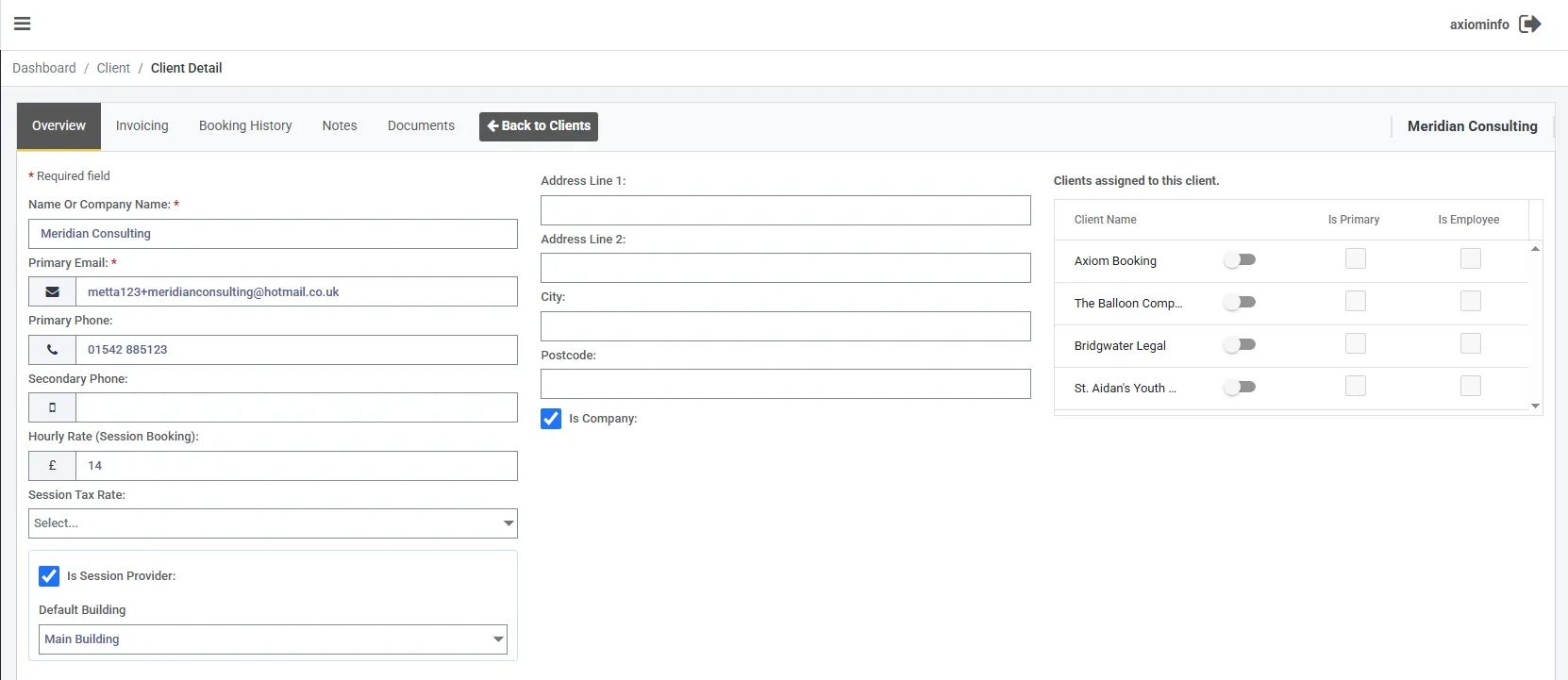
Default Building only appears once Is Session Provider is ticked. The grid on the right is covered in linking clients together.
The fields
Section titled “The fields”Fields marked with a red asterisk are required.
| Field | What it does |
|---|---|
| Name Or Company Name , required | A person’s name or an organisation’s. It is what staff see when they pick the client on a booking |
| Primary Email , required | The address Axiom sends this client’s confirmations, invoices and receipts to |
| Primary Phone | The number text messages go to |
| Secondary Phone | Used for text messages only when there is no primary phone |
| Hourly Rate (Session Booking), Session Tax Rate | Only used if the client is a session provider. See adding session providers |
| Address | The middle column. The lines it asks for follow your country |
| Is Company, Is Session Provider | Explained below |
The button at the bottom reads Add on a new client and Update on an existing one. Nothing on the tab is saved until you choose it, and that includes the linked-clients grid.
When a name or email is already in use
Section titled “When a name or email is already in use”Two checks run when you save, and each has its own message:
| Message | What it means |
|---|---|
| ”Client name is already in use, please try again.” | An active client already has this name. Capital letters are ignored, so “bridgwater legal” matches “Bridgwater Legal" |
| "This email address is already in use by another client, please try again.” | Another of your clients has this address, including a deactivated one |
The two checks treat deactivated clients differently. A name can be reused once the old client is deactivated; an email address cannot.
Both checks only look at your own clients. The same person can be a client of other organisations that use Axiom, and that never blocks them here.
If the email is refused, the person most likely signed up on your portal already, or was deactivated at some point. Search the client list with Include Inactive switched on, and use the record that is there.
Is Company
Section titled “Is Company”Tick it when the client is an organisation rather than a person. It puts a tick in the Company column of the client list.
Apart from that tick, it makes no difference: the client is priced, invoiced and booked the same whether it is ticked or not. Clients who sign up on your portal arrive with it unticked, so tick it yourself if one of them is a business.
Is Session Provider
Section titled “Is Session Provider”Ticking it makes the client bookable on the session calendar. Each active provider is one bookable item on your subscription.
Default Building
Section titled “Default Building”Once Is Session Provider is ticked, Default Building appears beneath it. It is the building this provider’s sessions take place in.
A session booking has no building field of its own. It takes the provider’s Default Building when it is made, and again whenever it is edited. So if you change a provider’s building, their existing bookings keep the old one until somebody edits them. Bookings made through your portal pick it up the same way.
The building matters for building capacity, which counts sessions against it. Leave Default Building empty for a provider who works off site: their sessions are then never counted against any building.
If the fields will not let you type
Section titled “If the fields will not let you type”Your role can view clients but not change them. The fields are read-only, there is no Update button, and the linked clients show as a plain list of names. Changing that is a job for whoever manages your roles.