
Setting up booking types
A booking type is the category a booking belongs to, and it carries the defaults for that category - how long it runs, what it costs on top of the hourly rate, how much gap to leave afterwards, and what colour it shows on the calendar.
Set these up before you start booking. Getting them right means most bookings need almost no adjustment.
Creating one
Section titled “Creating one”Go to Settings → Booking Type.
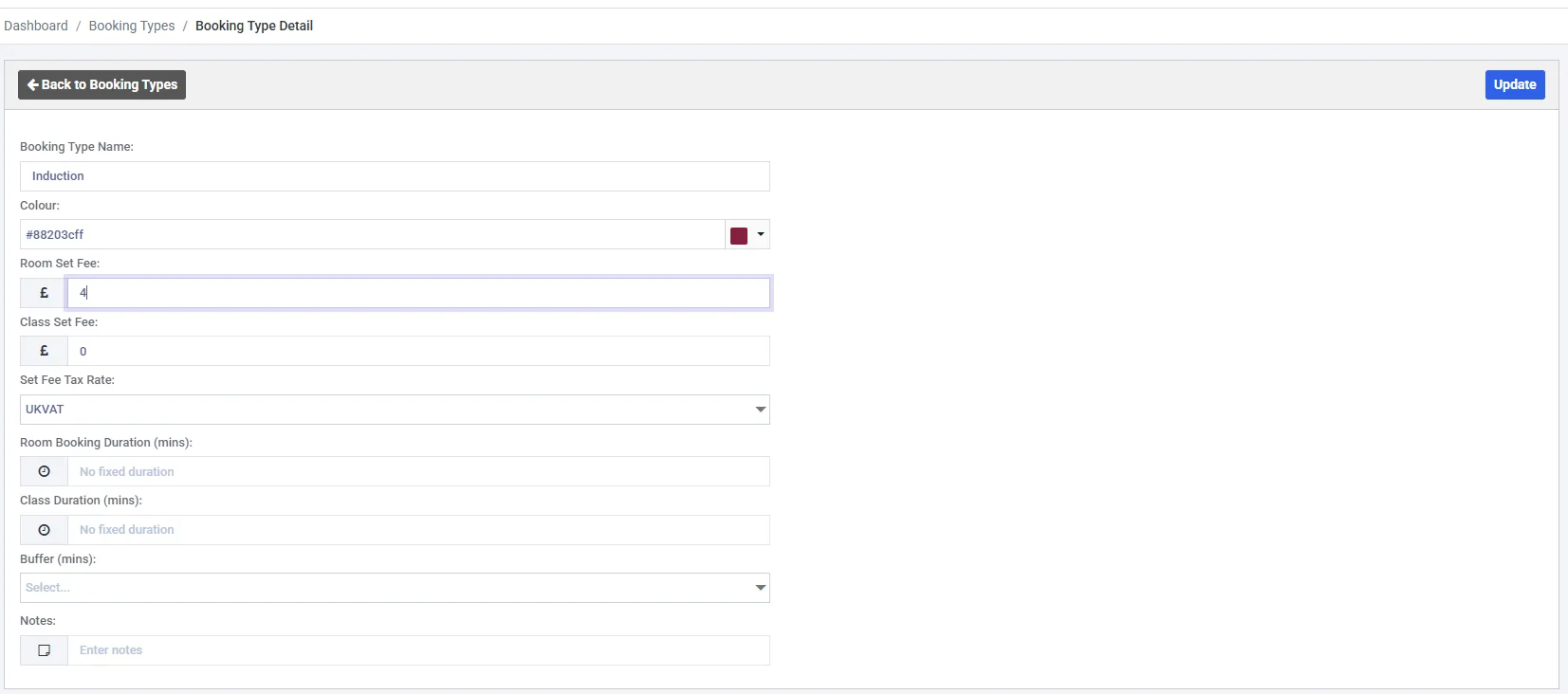
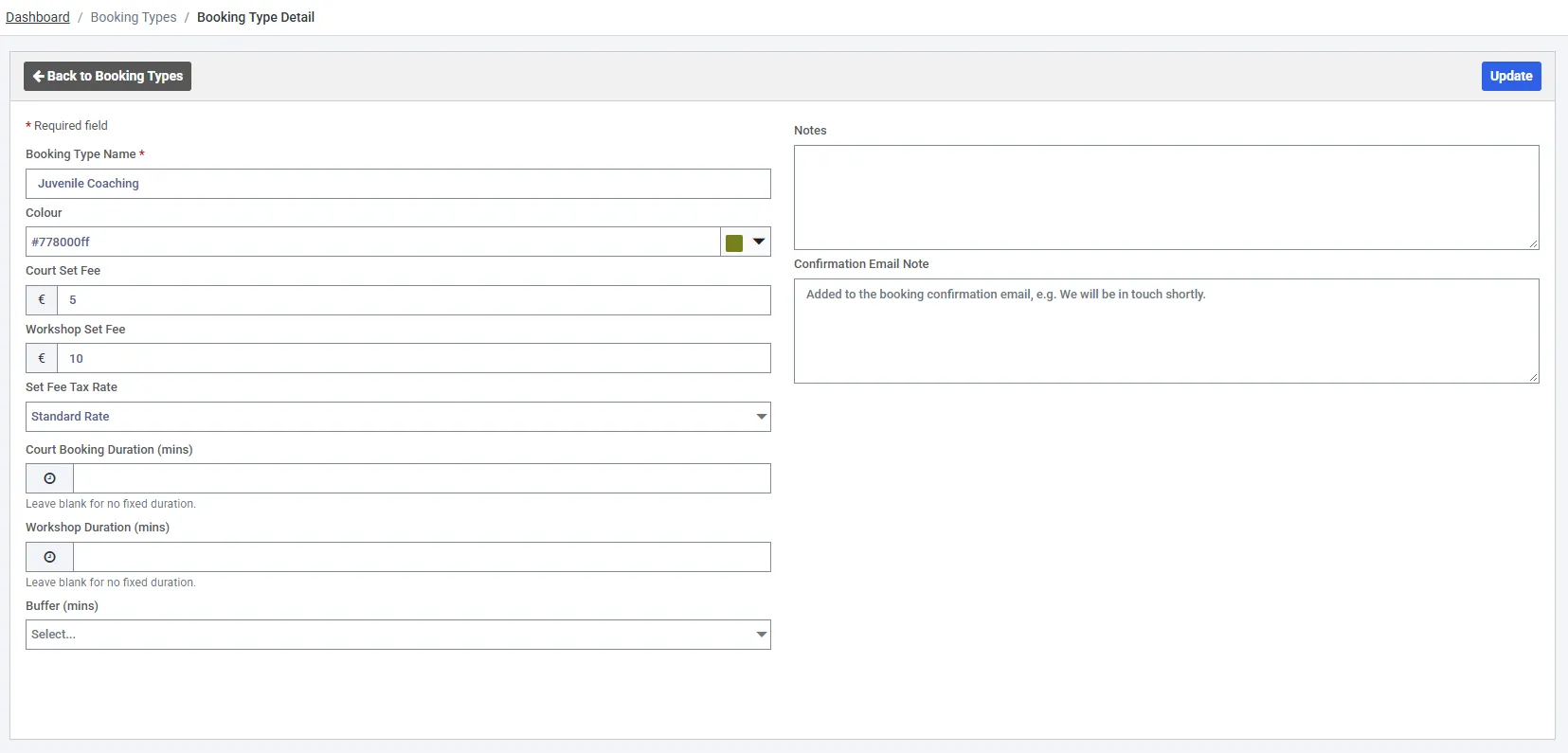
| Field | What it does |
|---|---|
| Booking Type Name , required | What staff pick from the list - “Community Rate”, “Peak Hire”, “Initial Consultation” |
| Colour , required | How it appears on the calendar. The fastest way to read a week at a glance |
| Space Set Fee | A flat charge added on top of the space’s hourly rate |
| Session Set Fee | The same, for session bookings |
| Set Fee Tax Rate | Which tax rate applies to those set fees |
| Space Booking Duration (mins) | Default length of a space booking of this type |
| Session Duration (mins) | Default length of a session of this type |
| Buffer (mins) | Protected gap either side of the booking |
| Requires Approval | Whether bookings of this type need approving before they’re confirmed |
| Notes | Free text for your own reference |
Fields marked with a red asterisk are required. Everything else can be left blank and filled in once you know what it should be.
Field labels use your own wording, so Space Set Fee may read “Room Set Fee” or “Court Set Fee”.
Set fees and the hourly rate
Section titled “Set fees and the hourly rate”The two stack. The space carries the hourly rate; the booking type adds a set fee on top.
That split is what lets one space have several prices without duplicating it. A hall at £30€30/hour with a “Community Rate” type carrying no set fee, and a “Commercial Hire” type carrying £50€50, is one space and two booking types - not two spaces.
Buffer time
Section titled “Buffer time”Buffer reserves time on both sides of a booking that nobody else can take. A 15-minute buffer on a 2pm–3pm hire protects 1:45pm–3:15pm. Use it for changeover - clearing a room, resetting equipment, cleaning between treatments.
It’s the difference between a calendar that looks full and a day that’s actually deliverable. If your team needs fifteen minutes between hires, put it here rather than hoping staff remember to leave a gap.
Approval
Section titled “Approval”Requires Approval only appears if the approval system is switched on for your organisation, under Settings → General → Approval System Enabled.
With approval on, bookings of that type arrive pending and need confirming before they’re live. Useful for requests coming in from the public that you want to vet, while your own staff bookings go straight through on a type that doesn’t require it.
How many to create
Section titled “How many to create”Start with as few as you can. One per genuinely different price or rule - not one per space, and not one per customer.
You can add more whenever you need them, and adding one later doesn’t disturb existing bookings.