
Settings
Settings → General is where your organisation is configured. It is a row of tabs, and most of them are documented alongside the task they belong to rather than here - a tax rate is explained where invoices are explained, not where it happens to be edited.
This page covers the Overview tab, and points at the rest.
Where each tab is documented
Section titled “Where each tab is documented”| Tab | Where to read about it |
|---|---|
| Overview | This page |
| Space Booking | The two module tabs, below |
| Session Booking | The two module tabs, below |
| Web Portal | Not yet written |
| SMS | SMS |
| Email settings | |
| Audit Log | A record of changes made in your account. The tab only appears if Auditing Viewable is on - see below |
| Subscription | Your subscription |
Four more screens sit outside this tab row. The first two are elsewhere in Settings; the last two are on the app’s own Security menu, and are covered in this section because they are administration like the rest of it:
- Settings → Booking Type - setting up booking types
- Settings → Tax Rate - tax rates
- Security → Users - users
- Security → Roles - roles and permissions
The two module tabs
Section titled “The two module tabs”Space Booking and Session Booking carry the same set of settings, one for each module:
| Setting | Where it is explained |
|---|---|
| Enable Space / Session Booking | Setting up your organisation |
| Slot Colour | Slots and availability |
| Scheduler Start / End Time | Slots and availability - a display setting, not availability |
| Enable Invoicing, Default Invoice Notes | Invoicing & Payments |
| Enable Deposit, Default Deposit Amount | Deposits |
Switching a module off greys the rest of its tab out - there is nothing to configure for a module you are not using.
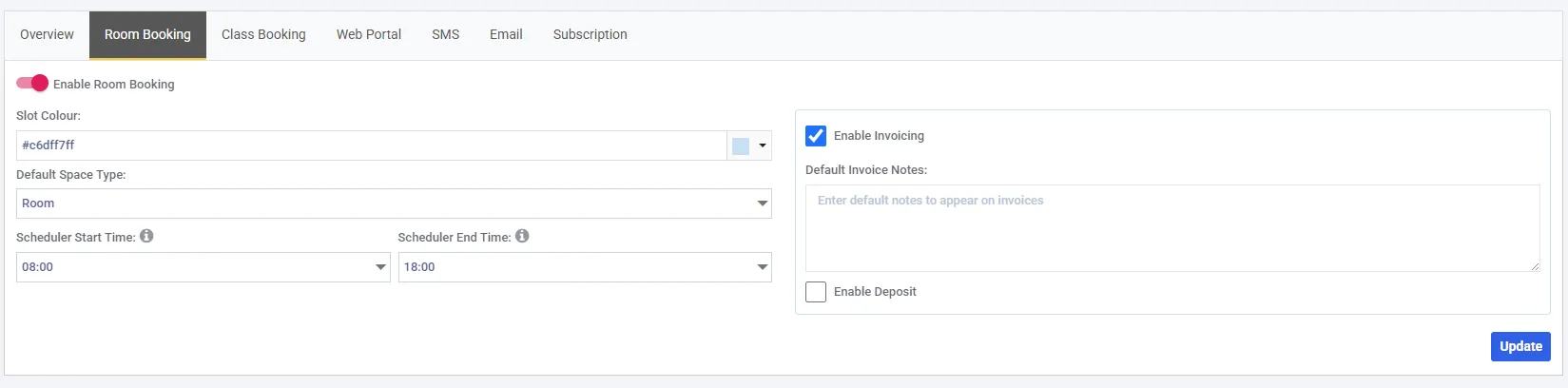
Default Deposit Amount is not shown because Enable Deposit is unticked - the deposit and invoicing fields only appear once the box above them is on.
Your organisation details
Section titled “Your organisation details”The left of the Overview tab is who you are. It is worth getting right early, because this is what your customers see on invoices and in your booking portal.
| Field | Notes |
|---|---|
| Personal or Company Name | Trading name - an individual’s name is equally valid |
| Your organisation’s contact address | |
| Primary / Secondary Phone | |
| Web Address | Your own site, if you have one |
| Address | The middle column |
| Description | Free text about your organisation |
Update saves the tab. The button is disabled until both the details and the address are valid.
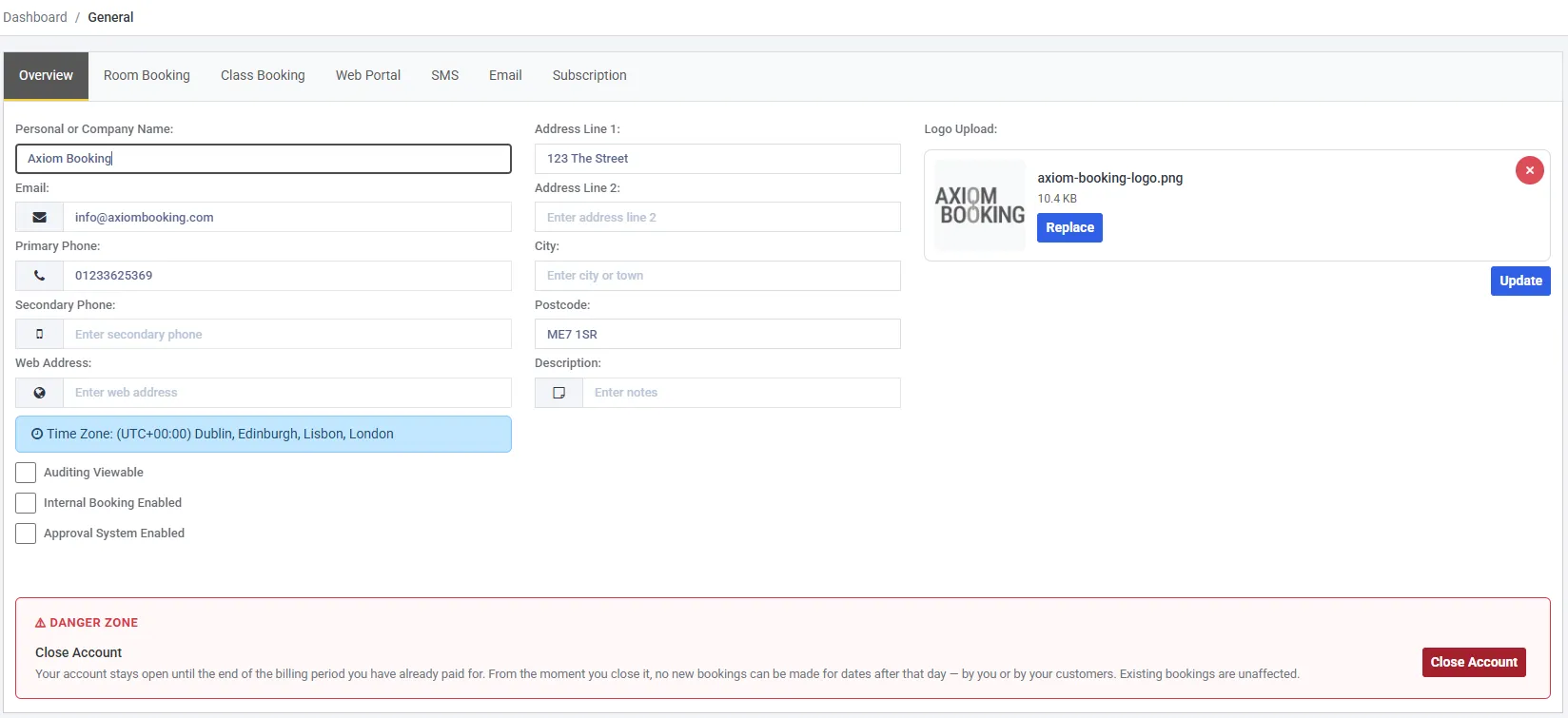
The tab row here reads Room Booking and Class Booking - this account renamed its spaces and sessions during setup. Note there is no Audit Log tab, because Auditing Viewable is unticked.
Your time zone
Section titled “Your time zone”Time zone shows as an information line, not a field - Time Zone: … - because it is set when you first create the account and is not editable here. It is the basis of every booking time in the system, so if it is wrong, get in touch rather than working around it.
Your logo
Section titled “Your logo”Logo Upload on the right. This is the mark that appears on your invoices and in your booking portal, so a clean version on a plain background works best.
The three switches
Section titled “The three switches”Small checkboxes with account-wide effects.
Auditing Viewable shows or hides the Audit Log tab. It controls visibility only - turning it off does not stop anything being recorded.
Approval System Enabled turns the approval system on for your organisation, and is the switch to set first: until it is on, Requires Approval does not appear on a booking type at all. See approvals for how the queue works and booking types for choosing which bookings enter it.
Internal Booking Enabled lets you book against your own organisation. Your own record then appears in the client list on a booking, so you can block out a room for your own use - a staff meeting, maintenance, a private function - rather than inventing a dummy client for it.
Closing your account
Section titled “Closing your account”At the bottom of the Overview tab, in a red Danger Zone panel. It only appears if your role carries the Delete permission on General, so most staff will not see it at all.

Closing is a scheduled action, not an immediate one:
- Your account stays open until the end of the billing period you have already paid for. Closing during your free trial closes it at the end of the trial, and no payment is ever taken
- From the moment you close it, no new bookings can be made for dates after your closing day - by you, and by your customers through the portal. Axiom refuses them rather than accepting something nobody can honour
- Bookings you already hold past that date are left alone. Not cancelled, not hidden. You can still see, change, cancel and refund them right up to the closing day
- Everything else works normally until then
The confirmation dialog names your actual closing date before you commit.
Changing your mind
Section titled “Changing your mind”Once closure is scheduled the panel shows the date and the button becomes Reopen Account. Reopening any time before that date cancels the closure and your subscription carries on as though nothing happened.