
Attendees
Attendees are the individual people attached to a booking. Who they are, and what attaching them costs, depends entirely on which module you are in.
| Space booking | Session booking | |
|---|---|---|
| Who they are | The client’s own people | The customers |
| Are they billed? | Never. Only the client on the booking pays | Yes - each one individually |
| What they see | A confirmation email with no money in it | Their own invoice |
Adding them
Section titled “Adding them”The Attendees button sits beside the Client field on the booking panel and shows a running count.
It stays disabled until the booking has enough on it to scope the list - a client and a space on a space booking, a provider on a session booking. Hover it and it tells you which is missing.
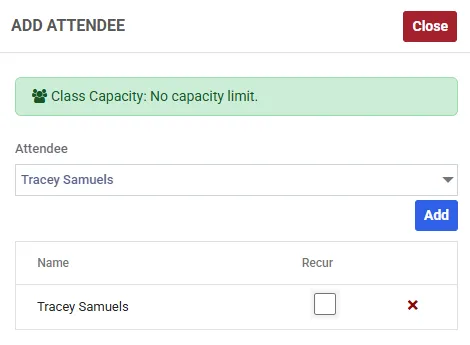
A session with no cap set, so the banner is green and counts nothing. Give the booking a cap and it turns blue and keeps a running total instead.
Pick a name, choose Add, and it joins the list. The red cross removes someone.
The capacity banner
Section titled “The capacity banner”The banner at the top counts places as you go, and it has three states - the colour tells you which before you have read a word of it:
| State | What it says | Colour |
|---|---|---|
| No cap set | ”No capacity limit.” | Green |
| Room left | ”Room Capacity: 1 / 5 attendees (4 remaining).” | Blue |
| Full | ”Maximum capacity reached (5 attendees).” - with Add disabled | Red |
It uses your own wording, so it may read “Class Capacity” or “Court Capacity”.
Why someone is missing from the list
Section titled “Why someone is missing from the list”The dropdown offers only the selected client’s own contacts - the people recorded against that client on the client screen. It is not a list of everybody you have ever dealt with.
This is deliberate, and it is the thing that stops a member of staff putting a stranger on somebody else’s booking. A booking’s attendee list is visible to the client it belongs to, so the restriction is doing real work.
If the person you want is not there, the fix is on the client record, not on the booking: record them as belonging to that client, and they appear. Axiom never creates that link on its own - somebody has to state it, because most clients are independent and having no related contacts is the normal case, not a gap.
Open bookings are the exception. Their attendees are members of the public who joined through your portal, so they belong on nobody’s list and the restriction does not apply. See open bookings.
The Recur column
Section titled “The Recur column”If the booking repeats, Recur decides whether that person comes along to the other dates. It arrives unticked, so an attendee is added to the date in front of you and no other.
For a weekly class with the same people every week, that means ticking Recur for each regular - otherwise only the first week has anybody in it. On a session booking that is also a billing decision, because each attendee is an invoice.
See repeating a booking.
Changing the client or provider afterwards
Section titled “Changing the client or provider afterwards”Two refusals exist here, and both are worth understanding before you hit one.
Attendees still attached. Changing a booking’s client - or a session’s provider - while the previous owner’s people are still on it is refused. Remove or replace the attendees first. It is a genuine mess and Axiom would rather you resolved it deliberately than guessed for you.
The invoice has been issued. Once any of the booking’s invoices has left draft, the owner cannot be changed at all, open booking or not. Balances cannot be unwound after the fact.
Attendees on a series
Section titled “Attendees on a series”The booking panel only ever shows the attendees of one date - the one you opened.
That matters when you edit or cancel a series: the other dates may have people on them you cannot see from that screen, and on an open booking those may be portal customers who paid for their place. Axiom warns you when a change reaches dates beyond the one in front of you.
The read-only View option on the right-click menu is the way to see a whole series, with an attendee count per date. See editing and cancelling.