
Notes and documents on a client
The Notes tab holds anything your team wants remembered about a client, alongside a record of every email and text message Axiom has sent them.
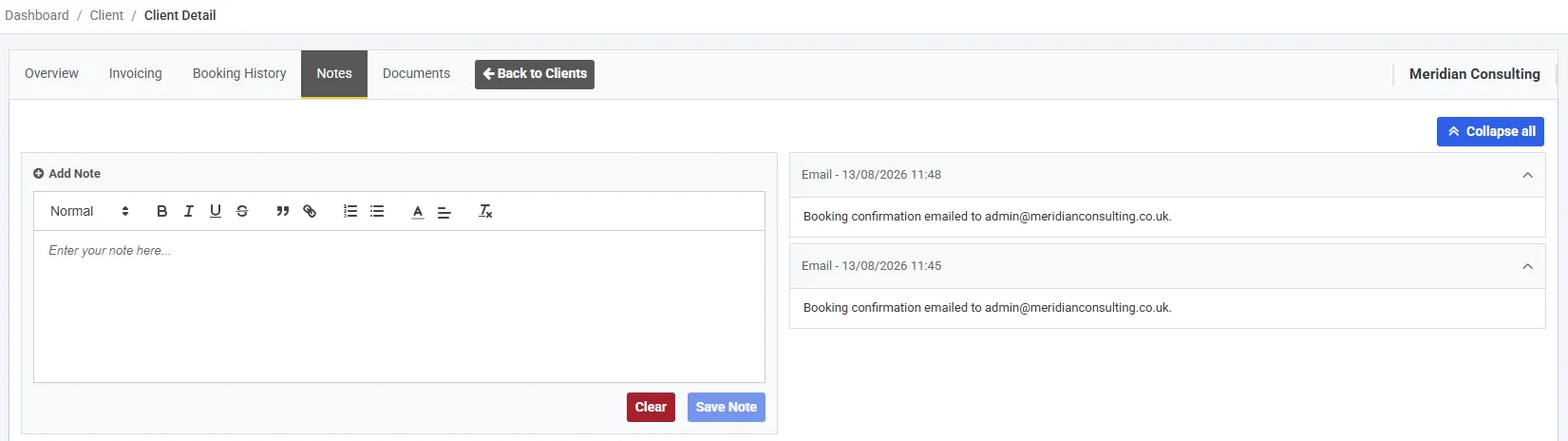
Both notes were written by Axiom when a booking confirmation was sent. Neither has a delete button: only notes your team types can be removed.
Adding a note
Section titled “Adding a note”Type into Add Note on the left. The toolbar above it does headings, bold, lists, links and the like. Save Note stays disabled until there is something to save, and Clear empties the box.
Notes are listed newest first. Each one has a heading with its type, date and time; select the heading to open or close it, or use Collapse all above the list, which then becomes Expand all. A long history is split into pages.
Notes Axiom writes for you
Section titled “Notes Axiom writes for you”Each heading starts with what made the note:
| Type | Written when |
|---|---|
| Note | Someone on your team saved it |
| A booking confirmation, a booking update, an invoice or a receipt has been sent to this client. It names the address it went to | |
| SMS | A text message has been sent to this client. The note holds the message itself |
An email or SMS note is only written once the message has actually gone. Sending texts is covered in SMS.
Deleting a note
Section titled “Deleting a note”Notes your team typed have a bin button on their heading, and Axiom asks before deleting. Email and SMS notes have no bin button and cannot be deleted, because they are the record of what was sent.
If your role can view clients but not change them, the Add Note box and the bin buttons are not shown.
Documents
Section titled “Documents”The Documents tab holds files attached to this client, such as a hirer’s public liability insurance or their risk assessment.
Documents are stored and managed in the Document Manager, and attached to records from there. How to attach one, and who can see it, is in Document Manager.