Document Manager
Tools → Document Manager is a store for the documents your organisation has to keep: insurance certificates, risk assessments, policies, inspection reports. Every version you upload is kept, so you can always show what was in force at a given time.

The grid lists every document with its category, review date, current version number and status.
Create a category first
Section titled “Create a category first”Every document is filed under a category, and nothing is set up for you - until one exists you cannot add a document at all.
Categories live at Settings → Document Category. Name them the way your organisation already talks about its paperwork: Insurance, Risk Assessments, Policies, Certificates, Emergency Plan.

Adding a document
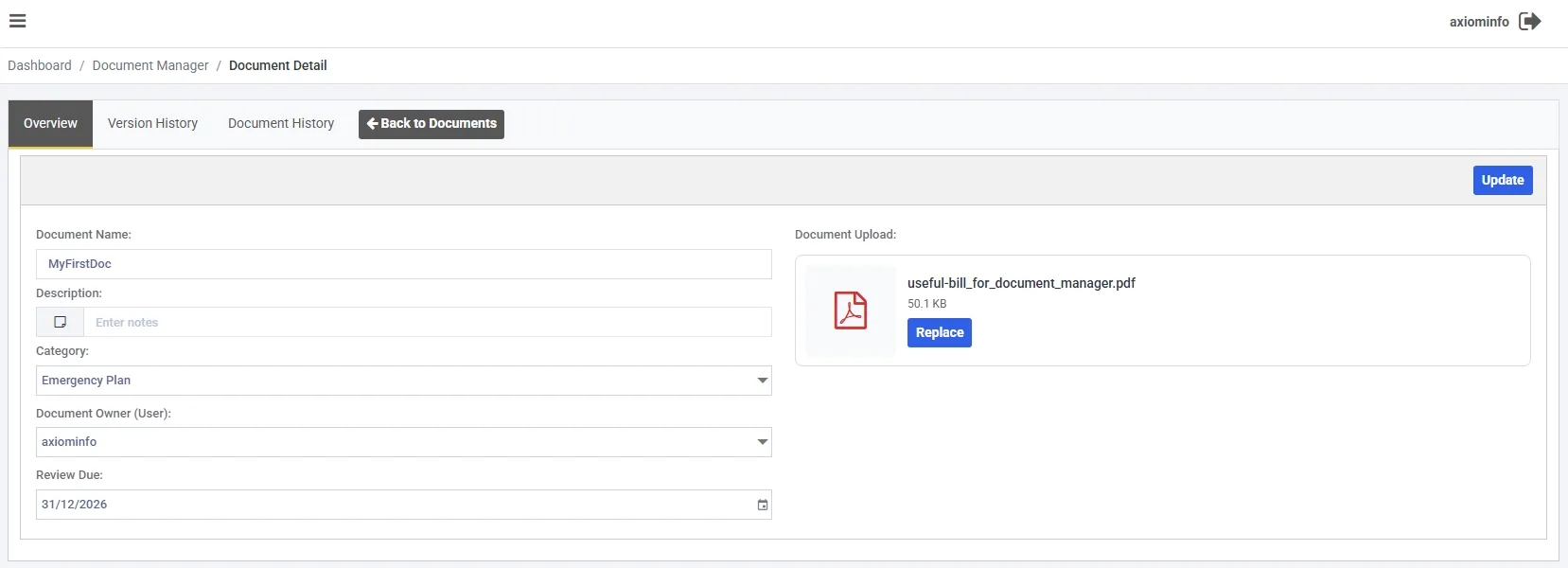
Section titled “Adding a document”New on the Document Manager grid opens the Overview tab.
| Field | Notes |
|---|---|
| Document Name | What your team will search for. Not the filename |
| Description | Optional. Useful where the name alone is ambiguous |
| Category | Required - see above |
| Document Owner (User) | Optional. The person responsible for keeping it current |
| Review Due | Optional. The date it should next be looked at, and what the reminder is sent against |
Uploading the file
Section titled “Uploading the file”Use the Document Upload panel - Browse, or drag the file onto it.
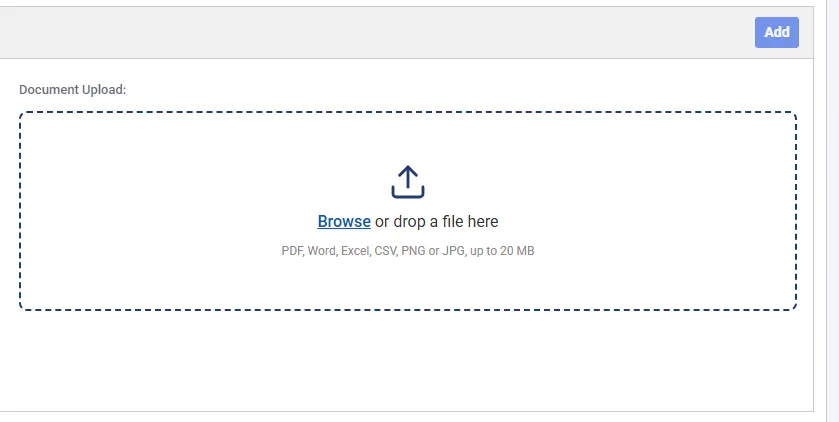
Anything outside that list is refused, including HTML and CSS files. The extension and the file’s actual contents must agree, so renaming a file to get around the list will not work.
Storage allowance
Section titled “Storage allowance”Your organisation has 1GB, shared across every document and every version of it. The bar in the grid toolbar shows what is used and turns red past 80%.
An upload that would take you over the limit is refused, and the message names the limit. Deleting documents is what returns space; the bar refreshes after a delete.
Replacing a document with a newer version
Section titled “Replacing a document with a newer version”Use Replace on the Overview tab rather than creating a second document with a similar name. The file you upload becomes the current version, and the one it replaced stays on the record.
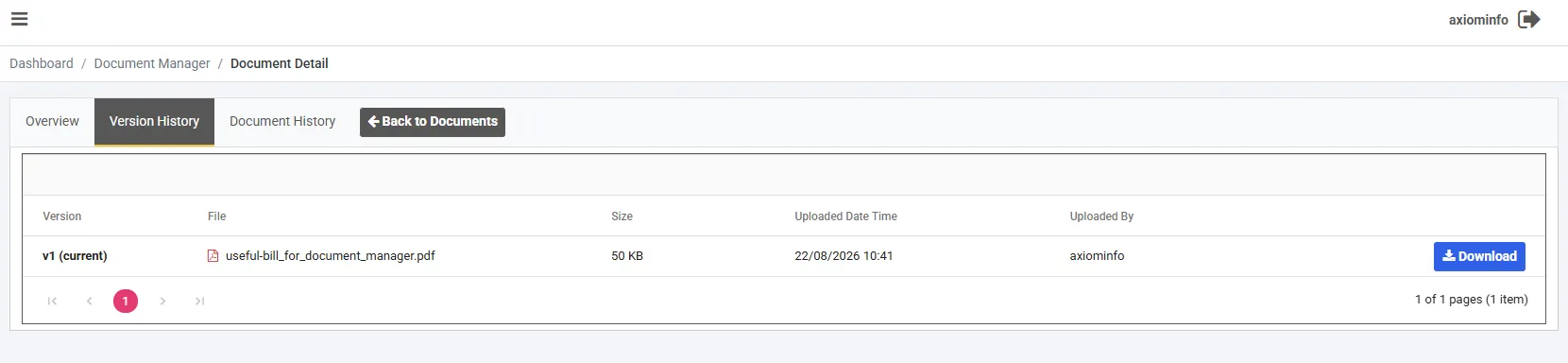
This is the point of the store. When somebody asks what your cover or your policy said on a particular date, the answer is a document you can produce rather than a recollection.
Downloading
Section titled “Downloading”Download on the Version History tab takes a copy of that version. Files always download rather than opening in the browser, and the link is single-use and expires after a few minutes - so a download link forwarded to somebody else will not work.
Document History
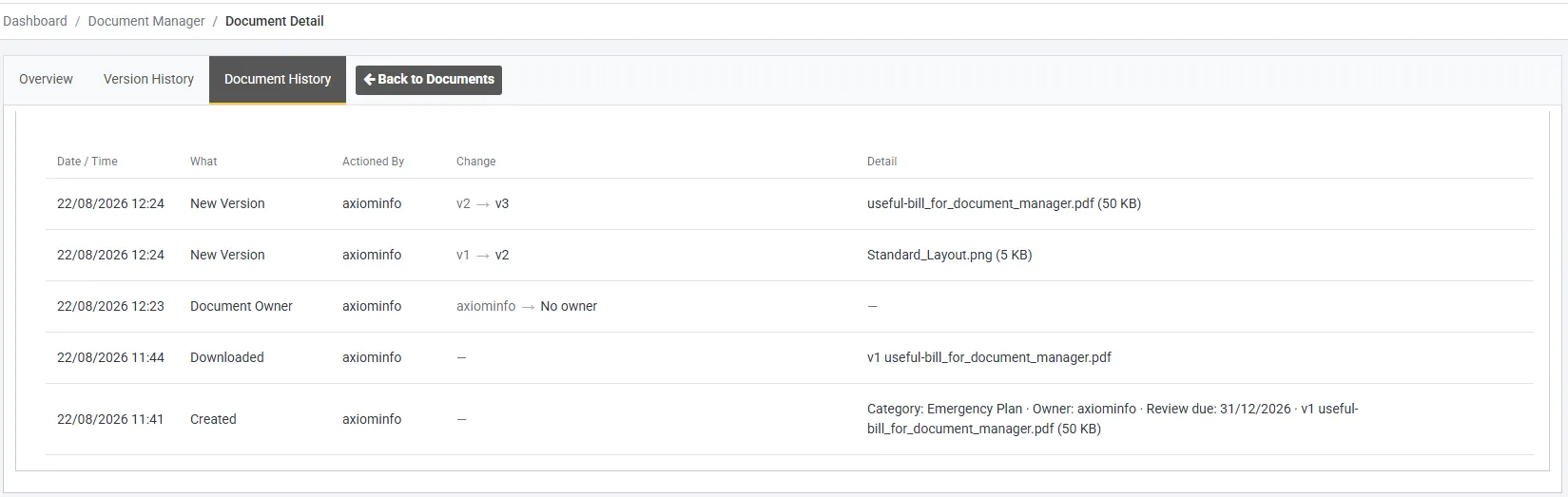
Section titled “Document History”The Document History tab lists everything that has happened to the document: created, downloaded, details edited, and each new version with the numbers it moved between.
Review dates and reminders
Section titled “Review dates and reminders”A document with a Review Due date is picked up by a daily sweep, and one email goes out ahead of the date. The mail names the document and links back into Axiom. The file itself is never attached to it.
| Setting | Where | Default |
|---|---|---|
| Send document review reminders | Settings → General → Email | On |
| Days before the review date | The same tab | 30. Anything from 1 to 365 |
Who gets it. The Document Owner, if you named one and that person is still active. If not, it goes to your organisation’s mailbox instead. It is never sent to both.
Changing the review date arms it again, so a document you renew and give a fresh date to is picked up next time round.
Reminders are part of the module. There is no charge for them.
Attaching a document to a record
Section titled “Attaching a document to a record”A document can be attached to the records it applies to, so the people working on that record find it without opening the Document Manager at all.
| Record | Typical use |
|---|---|
| Building | The insurance schedule or fire risk assessment for the premises |
| Space | An electrical or equipment certificate for one room |
| Client | A hirer’s own public liability cover or risk assessment |
| User | A qualification or check held against a member of staff |
One document can be attached to as many records as you like without uploading it again. A document attached to nothing at all is perfectly normal, and it is the common case - most belong to the organisation at large rather than to any one record.
Detaching removes it from that record only. The document itself is untouched and stays in the Document Manager.
A record’s list includes documents that have been made inactive, flagged as such. That is deliberate: it lets you tell the difference between a certificate that was never attached and one that has since been retired. The picker you attach from offers active documents only.
Who can see it
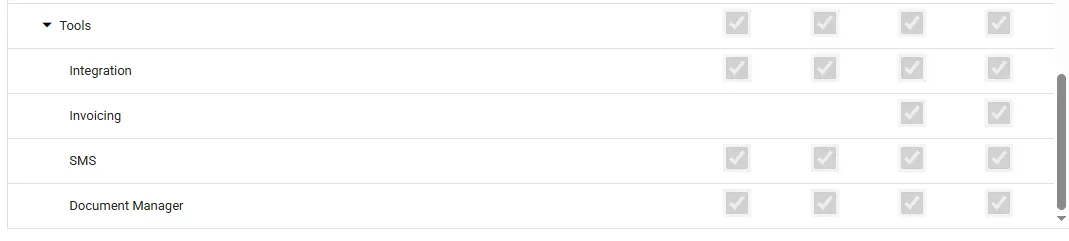
Section titled “Who can see it”Access follows your normal permissions. Security → Role carries Add, Delete, Edit and View for Document Manager under Tools, so a role can be given the ability to read documents without the ability to remove them. See roles and permissions.
Attaching is governed by the record, not by this page. Permission to attach a document to a building, space, client or user comes from that record’s own permissions, so somebody who looks after a building can attach a policy to it without being given Document Manager access. They will see document names, categories and review dates in the picker when they do.