
Client balances and booking history
The Invoicing and Booking History tabs show one client’s money and bookings. That is quicker than searching the whole of Tools → Invoicing or the calendars.
The Invoicing tab
Section titled “The Invoicing tab”The tab is only there when invoicing is switched on for at least one module, in the module tabs of Settings.
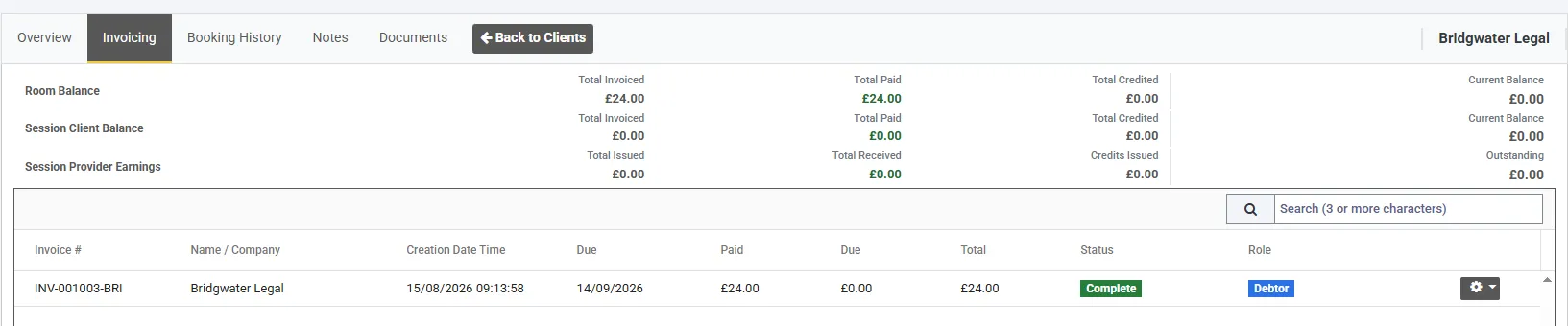
This client has only hired rooms, so only the first row has figures: £24.00 invoiced, £24.00 paid, nothing owed.
The three balance rows
Section titled “The three balance rows”Each row is named with your own words, so the first may read Room Balance or Court Balance.
| Row | What it covers |
|---|---|
| Space Balance | Invoices for space bookings where this client is the client |
| Session Client Balance | Invoices for places this client has taken on sessions |
| Session Provider Earnings | Invoices raised to the people attending this client’s sessions, if they are a session provider |
The first two rows read the same way:
| Column | Meaning |
|---|---|
| Total Invoiced | Everything invoiced to them |
| Total Paid | Everything they have paid |
| Total Credited | Everything taken off by credit notes |
| Current Balance | Invoiced, less paid and credited. Marked owed when they owe you, in credit when they have paid more than they owe |
The provider row looks at the same money from the other side. Total Issued, Total Received and Credits Issued are what this provider’s attendees have been invoiced, have paid and have been credited. Outstanding is what those attendees still owe for this provider’s sessions. None of it is owed by the provider.
The invoice list
Section titled “The invoice list”Below the balances is every invoice that involves this client. Select one to open it in place; the back button returns you to the list. What you can do with an invoice is covered in invoices.
The Role column says how the client is involved:
| Role | Meaning |
|---|---|
| Debtor | An invoice this client owes |
| Creditor | An invoice raised to someone who attended one of this provider’s sessions. It has no Actions menu here, because it belongs to that attendee |
Booking History
Section titled “Booking History”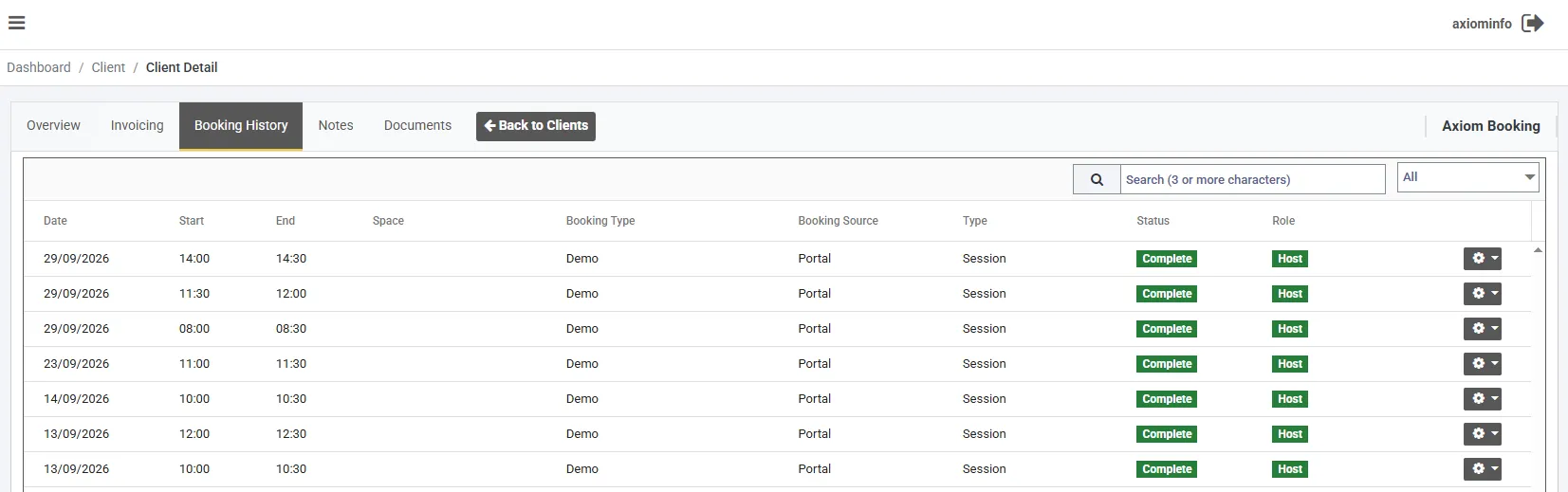
Every row reads Host because this client is the provider on each session. The Space column is empty because a session booking has no space.
Every booking the client is on, from both modules, newest first.
| Column | What it shows |
|---|---|
| Booking Source | Internal if your team made it, Portal if it came through your booking portal |
| Type | Which module the booking belongs to |
| Status | Where the booking is, such as Active or Complete |
| Role | How the client is involved, below |
| Role | Meaning |
|---|---|
| Host | The client on a space booking, or the provider on a session booking |
| Attendee | Attached to somebody else’s booking as an attendee |
| Host & Attendee | Both, on the same booking |
The dropdown above the list filters by status: All, Active and Complete, plus Pending and Rejected if you use approvals. Search needs at least three characters.
The Actions menu on a booking
Section titled “The Actions menu on a booking”- View opens the booking read-only
- Edit and Cancel appear on bookings this client hosts, until they are complete, cancelled or rejected
- Approve and Reject appear on a booking waiting for approval
A row where the client is only an Attendee offers View and nothing else. To change that booking, find it under the client who hosts it. Each option also depends on what your role allows.