
Slots and availability
A slot is a window of time in which something can be booked - “Theatre 1 is bookable 09:30 to 16:30 on these dates”.
Slots belong to one space, or one session provider, on one date. They are not an organisation-wide opening time - a hall can be open all day while a room inside it is only bookable between two and five. Set them up once as a repeating series and you can largely forget about them.
Slots mode
Section titled “Slots mode”Slots are added from the calendar itself, using the Slots button in the toolbar. It turns red while you are in slots mode, so you can always tell which mode you are in.
Slots mode is available in Day and Week views only. It is disabled in Month and Agenda, because you cannot draw a time range on a calendar that has no times on it.
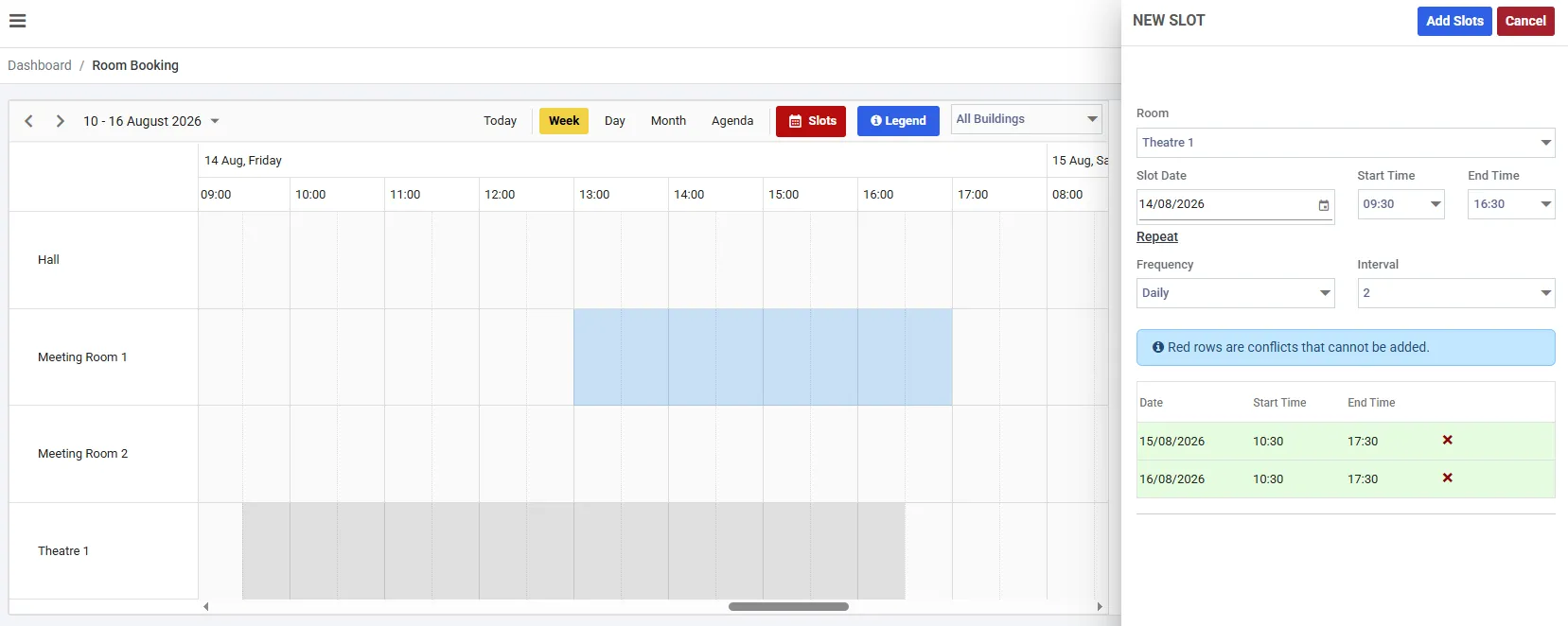
Slots mode redraws the calendar: existing slots take your own Slot Colour - the darker band here - and time with no slot on it goes clear.
Switching into slots mode changes what the calendar shows. Existing slots take the colour you chose under Settings → General → Slot Colour, and everything without a slot goes clear, so you are looking at your availability rather than your bookings.
Adding a slot
Section titled “Adding a slot”Click the day and time you want, and a NEW SLOT panel opens.
| Field | What it means |
|---|---|
| Space | Which space the slot belongs to. Labelled with your own wording, so it may read “Room” |
| Slot Date | The day it applies to |
| Start Time, End Time | The window itself |
| Frequency, Interval | Optional - repeat it across a run of dates |
Then choose Add Slots.
Repeating slots
Section titled “Repeating slots”This is how you set up standing availability rather than one day of it.
Set a Frequency - Daily, Weekly, Monthly or Yearly - and an Interval, and the dates it generates are listed in the grid below before you commit.
- Green rows will be created
- Red rows are conflicts with slots you already have, and will not be
- The cross beside a row drops it from the batch
A weekly slot repeated across a year is one action, and it is what most organisations do first.
Three rules a slot has to satisfy
Section titled “Three rules a slot has to satisfy”Axiom refuses rather than guessing, and each refusal names itself:
A slot cannot span two days. “Cannot add a slot over two days.” If you open until 2am, that is a slot ending at midnight and another starting at 00:00 the next day. This is deliberate - it is what keeps a slot meaning the same thing across clock changes.
A slot cannot overlap another slot on the same space. “Cannot add slot as it overlaps an existing slot.” Extend the existing one rather than layering a second over it.
A slot has to fall inside your scheduler hours. “This slot falls outside the scheduler hours (08:00 - 18:00).” See below - this one surprises people.
Scheduler hours are a display setting
Section titled “Scheduler hours are a display setting”There is a second pair of times in Axiom, and they are not availability. They are easy to mistake for it.
| What it controls | Where it lives | |
|---|---|---|
| Slots | What can be booked | The calendar, in slots mode |
| Scheduler Start / End Time | What the calendar shows | Settings → General |
Scheduler Start Time and Scheduler End Time default to 08:00 and 18:00 and decide the first and last hour drawn on the day and week grids. Nothing more. The app’s own tooltip says it plainly: bookings outside those hours still exist and are still visible in Month view, Agenda view and Booking History - they are just not drawn.
Changing them does not open or close anything. It only changes how much of the day you are looking at.
The one place the two meet: a slot cannot be created outside the scheduler window, because there is no grid to draw it on. So if a space is available from 06:00 and the scheduler starts at 08:00, widen the scheduler hours first, then add the slot.
Each module has its own pair, so a space calendar and a session calendar can show different hours.
Changing a slot
Section titled “Changing a slot”Right-click any slot in slots mode:
| Edit Slot | Change its start and end time |
|---|---|
| Delete Slot | Remove it - “Delete this slot? This cannot be undone.” |
Two refusals protect bookings that already exist inside a slot:
- Shrinking a slot across an existing booking is refused - “Cannot change these times as they would cut into an existing booking.”
- Deleting a slot that has bookings in it is refused - “This slot cannot be deleted as it has active bookings.”
In both cases, move or cancel the bookings first. Axiom will not orphan a booking by removing the availability underneath it.
Slots for session providers
Section titled “Slots for session providers”Sessions need slots exactly as spaces do, with one difference in what they hang off.
A session slot belongs to the provider, not to a room. It says when that person or organisation is available to deliver sessions. If somebody teaches Tuesdays and Thursdays, that is what their slots should say - it is how the calendar knows when they can be booked.
Everything else is the same: the Slots button on the session calendar, the same panel, the same three rules. The refusal names the provider instead of the space - “No available slot at the selected time for this client.”
Sessions also carry their own Slot Colour and their own scheduler hours, separate from the space ones, so the two calendars can be told apart at a glance.
Where to go next
Section titled “Where to go next”With slots in place, the calendar will accept bookings - making a space booking and making a session booking pick up from there.