
Approvals
Approval turns a booking into a request. Nothing is confirmed and nothing is invoiced until somebody says yes.
It is what you want when requests arrive from the public and you need to vet them, while your own staff bookings go straight through.
Switching it on
Section titled “Switching it on”Two steps, in this order:
- Settings → General → Approval System Enabled - turns the feature on for your organisation
- On each booking type, tick Requires Approval
The tick only appears on booking types once step 1 is done.
The flag lives on the booking type, so it is all-or-nothing per type. That is what lets you run a “Community Request” type that needs vetting alongside a “Staff Booking” type that does not. See setting up booking types.
What a request looks like
Section titled “What a request looks like”A booking of an approval-gated type arrives pending:
- It is on the calendar, marked as pending approval - it is not hidden
- No invoice is raised
- No payment is taken, even from the portal
Customers booking through your portal see this plainly: the button reads Send Booking Request rather than anything about paying, and they are told they will not be charged now.
Finding what is waiting
Section titled “Finding what is waiting”Two places:
- The dashboard - a pending count, and the upcoming bookings list with an approval status filter
- Clients & Services → Booking Management - the full booking history, with an Approval Status column and filters for status and approval
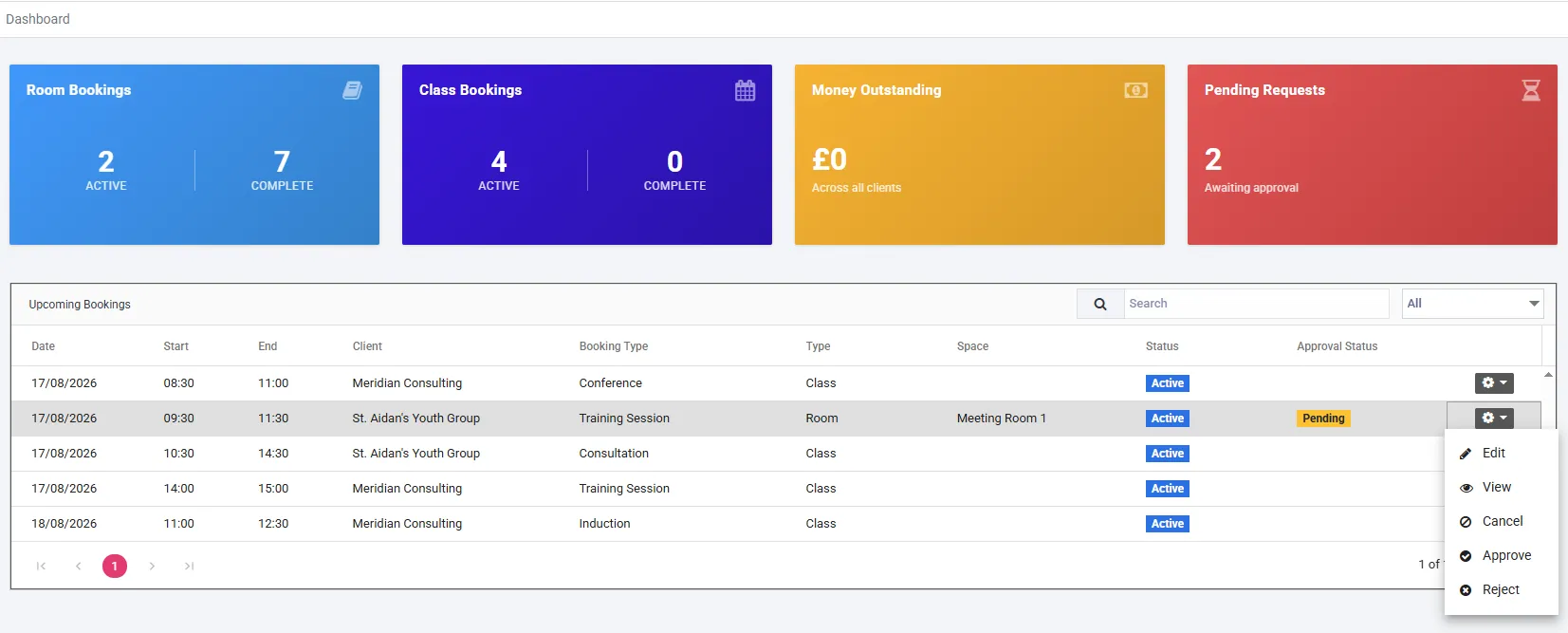
The Pending Requests tile is the count to watch. In the grid below, only the pending row carries an Approval Status; an ordinary booking leaves that column blank.
A booking that does not need approval shows nothing in the Approval Status column. Blank means “not applicable”, not “not yet approved”.
Approving and rejecting
Section titled “Approving and rejecting”Both come off the gear menu at the end of the booking’s row, alongside Edit, View and Cancel.
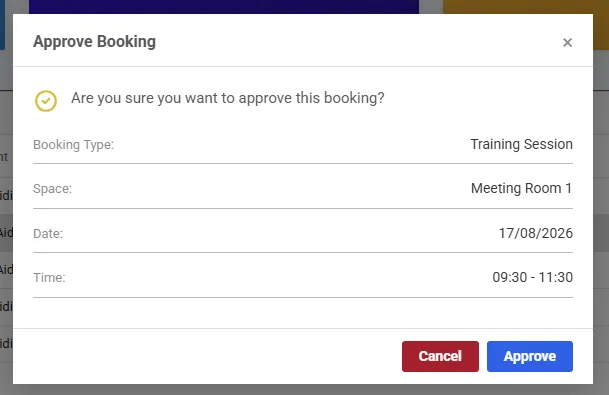
Approve shows you the booking - type, space, date and time - and asks to confirm.
Reject requires a reason, up to 500 characters. It is not optional: the confirm button stays disabled until you have written one.
What approving does to the invoice
Section titled “What approving does to the invoice”Approval raises a draft invoice and stops there.
It does not issue anything, and it does not email the customer a bill. You then check the draft, take it out of draft and send it. Those two manual steps are the review gate - a draft cannot be paid, which is exactly why it is a draft.
There is a second thing worth knowing, because it differs from every other route:
Approvals accumulate onto one open draft per client. Approve five requests for the same customer and all five land on one invoice. Five ordinary bookings for that customer would produce five.
That asymmetry is deliberate. An ordinary booking is a complete commercial event when it is made. Approvals arrive piecemeal over days, and a customer should not receive an invoice per decision you happen to make.
Once an invoice has been issued and payment has begun, it leaves the draft pool, so a later approval starts a fresh one rather than joining a bill somebody is midway through paying.
What rejecting does
Section titled “What rejecting does”The booking is cancelled, and the charge is unwound in whichever way is honest:
| The charge was on | What happens |
|---|---|
| A draft invoice | The line is removed and the totals recalculated. If nothing is left, the draft is voided |
| A finalised invoice | A credit note is raised. The issued document is never edited |
Approval is per date, not per series
Section titled “Approval is per date, not per series”A recurring request of twelve dates needs twelve approvals.
That is deliberate rather than an oversight. Conflicts differ per occurrence, so you may well want to approve eleven and reject the one that falls on a day you are closed. Approving a series wholesale would take that away.
The customer is not spammed for it - the confirmation email is keyed to the series, so a twelve-date series still produces one email.
Editing an approved booking un-approves it
Section titled “Editing an approved booking un-approves it”A booking that was approved and is then materially changed drops back to pending and comes off its invoice. It needs approving again.
The thing that was approved is no longer the thing that exists. If somebody approved a two-hour hire and it is now a five-hour hire, the original decision does not carry over.
Approval and the portal
Section titled “Approval and the portal”- Pending bookings are shown in your portal, marked as awaiting approval. They are not hidden from the customer who asked for them
- A draft invoice raised on approval is visible there, but cannot be paid until you issue it
- An open booking whose type requires approval cannot be joined from the portal at all. Requesting and joining are different actions, and joining assumes a confirmed booking to join