
Recording payments
When a customer pays, record it against the invoice. Axiom updates what they owe, and issues a receipt you can send them.
Adding a payment
Section titled “Adding a payment”Open the invoice and choose Add Payment. A panel opens on the right.
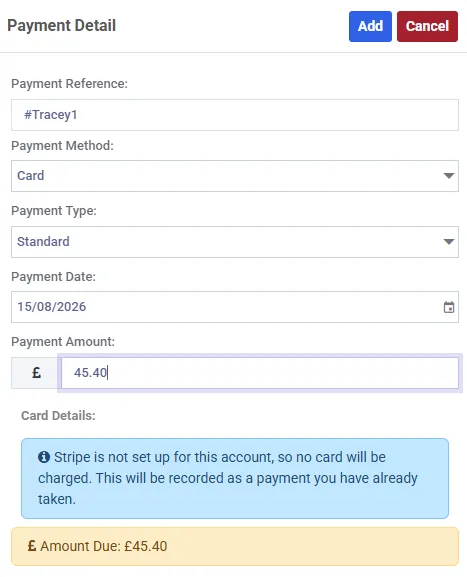
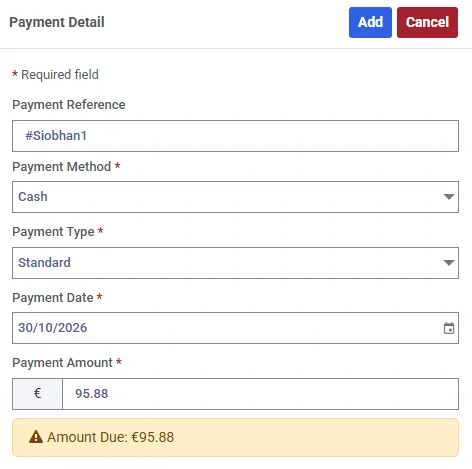
| Field | What it means |
|---|---|
| Payment Reference | Your own reference - a cheque number, a transfer reference |
| Payment Method | Cash, Cheque or Card |
| Payment Type | Standard for an ordinary payment, or Deposit |
| Payment Date | When it was received. Cannot be in the future |
| Payment Amount | How much |
The panel shows the amount outstanding as you type, and warns you if the payment exceeds it.
Add Payment is unavailable on a draft invoice and on a void one. A draft is not payable - issue it first.
Part payments
Section titled “Part payments”Pay less than the full amount and the invoice moves to Part Paid rather than Paid. Add further payments against it until the balance clears.
Every payment is listed separately on the invoice, each with its own date and its own receipt.
Paying by card
Section titled “Paying by card”Choose Card as the method and, if you have Stripe connected, a card form appears in the panel and the card is charged there and then.
If you do not have Stripe connected, the panel says so:
Stripe is not set up for this account, so no card will be charged. This will be recorded as a payment you have already taken.
That is a legitimate route - it is how you record a card payment you took on your own terminal. Axiom is recording a fact, not moving money.
See taking card payments to connect Stripe.
Refunds
Section titled “Refunds”If an invoice ends up overpaid - usually after a cancellation has credited part of it - the button changes from Add Payment to Process Refund, and the panel switches to refund wording throughout.
Deposits
Section titled “Deposits”A deposit is taken as its own invoice, separate from the booking’s, so it can be tracked and returned independently.
The two kinds of money are kept strictly apart: a deposit payment can only be recorded against a deposit invoice, and a deposit invoice can only receive deposit payments. Refund Deposit appears on the deposit invoice once it has been paid in full.
See deposits for the whole picture.
Receipts
Section titled “Receipts”Every payment produces a receipt.
- Save Receipt (PDF) downloads it
- Send Receipt (PDF) emails it to the customer
A payment can always be recorded
Section titled “A payment can always be recorded”Recording a payment or a refund is deliberately allowed even against a deactivated client.
The money moved in the real world, against an invoice raised while they were active. Refusing to record it would mean reactivating a client purely to bank something they already paid - so the restriction that applies to editing a client does not apply here.