
Add-ons
An add-on is a chargeable extra attached to a booking - equipment, catering, staffing, a hire item. It appears as its own line on the invoice.
Setting them up first
Section titled “Setting them up first”Add-ons are configured under Clients & Services before you can put one on a booking. There are three levels, and you only need to think about the top two once.
| Level | What it is | Example |
|---|---|---|
| Add-on Group Type | The broadest split | Catering |
| Add-on Group | A set within that | Drinks |
| Add-on | The thing you actually charge for | Cola |
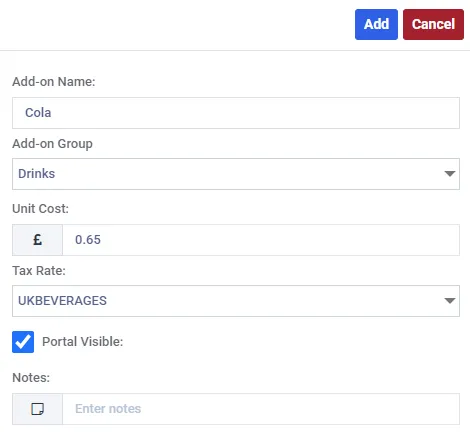
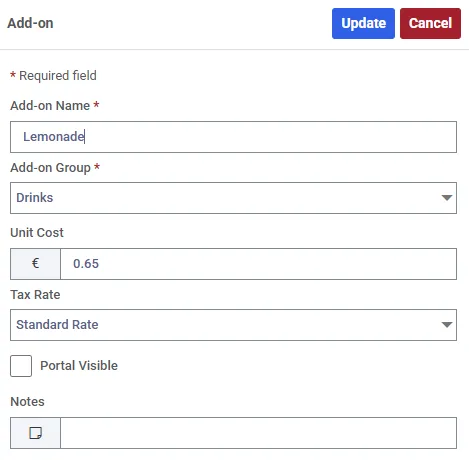
One add-on. The price here is the price of a single unit - what that means on a session booking is the one thing worth reading twice, below.
An add-on group carries a name, its group type and notes. An add-on carries:
| Field | What it does |
|---|---|
| Add-on Name | What staff pick from the list |
| Add-on Group | Which group it belongs to |
| Unit Cost | The price of one |
| Tax Rate | Which rate applies to it |
| Portal Visible | Whether your customers can see and choose it when booking themselves |
| Notes | Free text for your own reference |
Portal Visible is worth a thought per add-on. Something that needs a conversation first - staffing, a bespoke setup - is better left off the portal.
Adding one to a booking
Section titled “Adding one to a booking”Add-ons is the button at the top of the booking panel. It carries a count once you have picked some, so you can see at a glance that a booking has extras on it without opening anything.
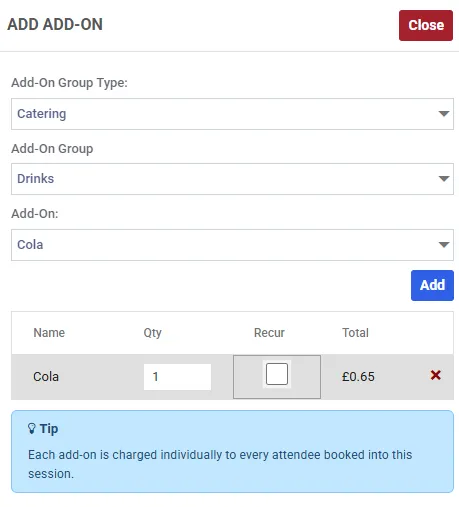
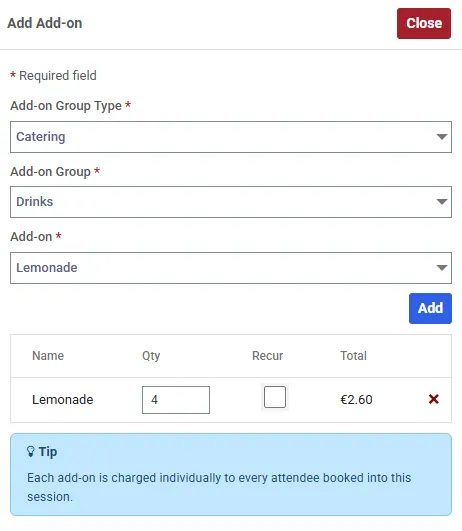
Adding ColaLemonade to a session booking. The tip at the foot only appears on sessions, and it is the whole of the per-attendee rule in one sentence.
Work down the three dropdowns - Add-On Group Type, then Add-On Group, then Add-On - and choose Add. Each choice narrows the next, which is what the grouping is for.
The grid below lists what you have added:
| Column | What it means |
|---|---|
| Name | The add-on |
| Qty | How many. Type straight into it |
| Recur | Whether it comes along to the other dates of a series |
| Total | What it comes to |
| cross | Removes it from the booking |
Session add-ons are priced per attendee
Section titled “Session add-ons are priced per attendee”This is the one that produces surprises on invoices.
| What the price means | |
|---|---|
| Space booking | The total. £20€20 of catering is £20€20, on the client’s invoice |
| Session booking | The price one person pays. £0.50€0.50 on a session with four attendees is £2.00€2.00, split across four invoices |
On a session the panel says so itself - the app shows ”£0.50€0.50 each × 4 attendees” and a tip reading “Each add-on is charged individually to every attendee booked into this session.”
So enter what one person pays and let Axiom do the multiplication. Entering the total is the mistake to avoid, and it scales with the size of the class.
That follows from how the two modules bill: a space booking charges one client, a session booking charges every attendee individually. See making a session booking.
The Recur tick
Section titled “The Recur tick”Recur is unticked by default. An add-on you add sits on the date in front of you and no other.
If the booking repeats and the extra is needed every week, tick it. If it is a one-off - a projector for the first session only - leave it.
Attendees work the same way and have their own Recur tick, for the same reason. See repeating a booking.
On the invoice
Section titled “On the invoice”Add-ons are their own lines, separate from the booking charge and from any booking-type set fee, each carrying the tax rate you gave it.
If a booking is later cancelled, its add-on lines are removed or credited along with it - see editing and cancelling.