
Linking clients together
On the right of a client’s Overview tab is a grid headed Clients assigned to this client. It lists your other clients, each with a switch. Switching one on records that they belong to this client, such as a company and its staff, or a club and its members.
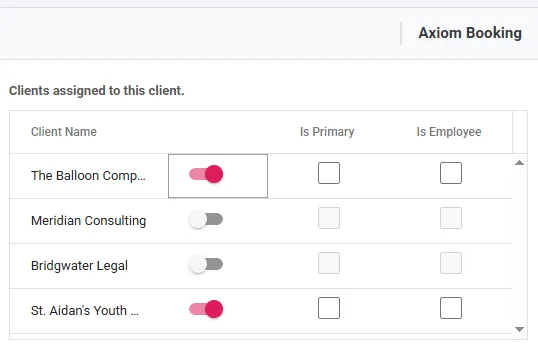
Linking a client
Section titled “Linking a client”- Open the client that the others belong to, usually the organisation
- Find the person or organisation in the grid. It scrolls, and Client Name sorts it
- Turn on the switch beside their name
- Tick Is Primary or Is Employee if either applies
- Choose Update
Nothing is saved until step 5.
To unlink someone, turn the switch off and choose Update. Bookings they are already on are left as they are.
Links run one way
Section titled “Links run one way”Linking a member to a club puts the member on the club’s list. It does not put the club on the member’s list, and the member’s own grid shows nothing switched on. Open the client that the others belong to, and link from there.
What a link changes
Section titled “What a link changes”A link decides who can be added as an attendee. When this client is the client on a space booking, or the provider on a session booking, the attendee list offers the clients linked here and nobody else. So if somebody is missing from that list, link them here. The rules for the attendee list itself, including the exception for open bookings, are in attendees.
Is Primary and Is Employee
Section titled “Is Primary and Is Employee”Both are labels for your team: the main contact at a company, or which linked people are its staff rather than its customers.
Nothing in Axiom acts on them, so leaving both unticked changes nothing.
Axiom never links clients for you
Section titled “Axiom never links clients for you”No link is ever made as a side effect. Adding someone to a booking doesn’t create one, and neither does joining an open booking or signing up through your portal.
Most clients belong to nobody, and an empty grid is the normal state. A link widens who can be put on that client’s bookings, so it is always somebody’s deliberate decision.