
Invoices
An invoice is raised automatically when a booking is made, provided invoicing is switched on for that module. It arrives as a draft, and stays one until you issue it.
They all live under Tools → Invoicing, with a search box and a status filter.
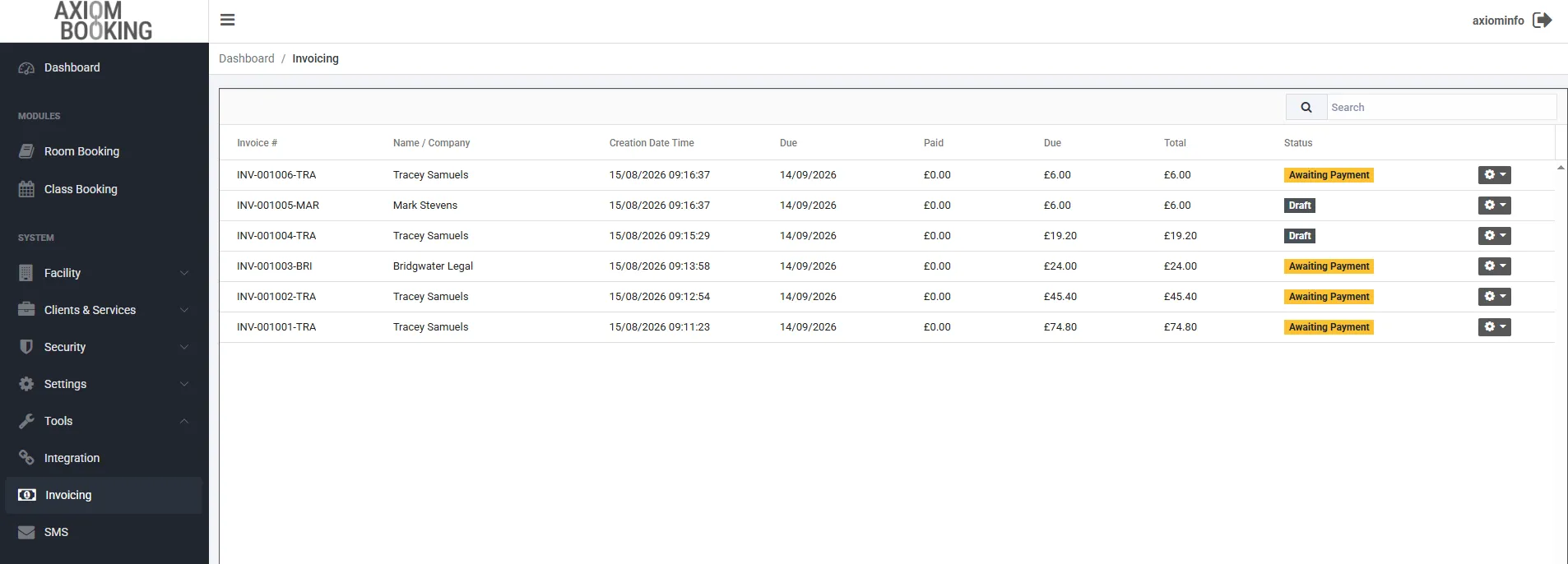

Drafts and issued invoices sit in the same list, distinguished by their status tag. Each row’s gear menu carries the actions for that invoice.
Invoice numbers run in sequence with a short suffix taken from the client’s name - INV-001002-TRAINV-001002-CIA. If an invoice is ever moved to a different client, that suffix is rewritten to match.
The lifecycle
Section titled “The lifecycle”| Status | What it means |
|---|---|
| Draft | Raised but not issued. Not payable, not sendable, no effect on the client’s balance |
| Awaiting Payment | Issued. The customer owes it |
| Part Paid | Some money received, some outstanding |
| Paid | Settled in full |
| Complete | Settled and closed. The bookings on it lock at this point |
| Void | Cancelled before it was ever issued |
| Credited | Reversed by a credit note |
The path most invoices take is Draft → Awaiting Payment → Paid → Complete.
Issuing
Section titled “Issuing”Open the invoice, or find it in the list, and choose Issue Invoice from the actions menu.
It only appears on draft standard invoices - credit notes and deposit invoices are issued by their own routes, so the menu never offers it where it would not apply.
Issuing moves the invoice to Awaiting Payment and makes it real: payable, sendable, and counted in the customer’s outstanding balance.
Emailing it
Section titled “Emailing it”Send Invoice (PDF) emails it to the client with the invoice PDF attached. You are asked to confirm first, and told who it is going to.
If the option is refused, the reason is one of two:
- “This invoice is still a draft. Issue it before emailing it to the client.”
- “This invoice is no longer payable, so it cannot be emailed to the client.”
Save Invoice (PDF) downloads the same document without sending anything.
Reading the screen
Section titled “Reading the screen”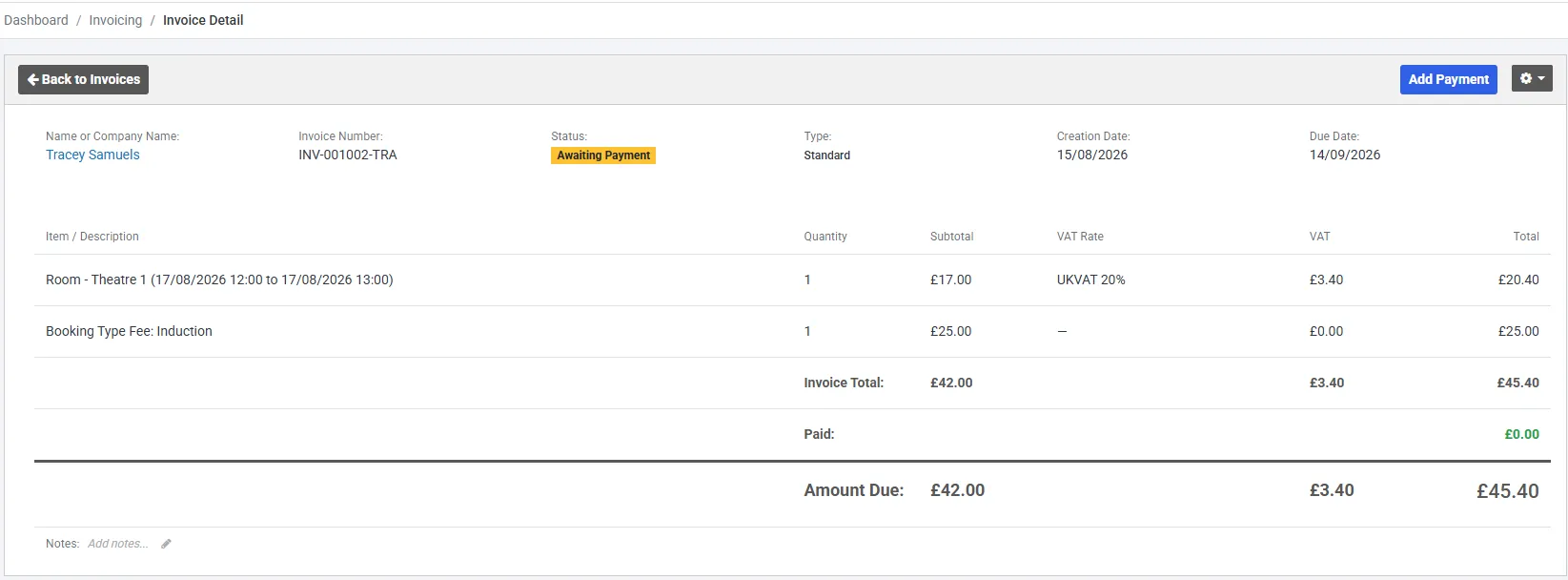
The header carries the client, the invoice number, its status and type, and the creation and due dates.
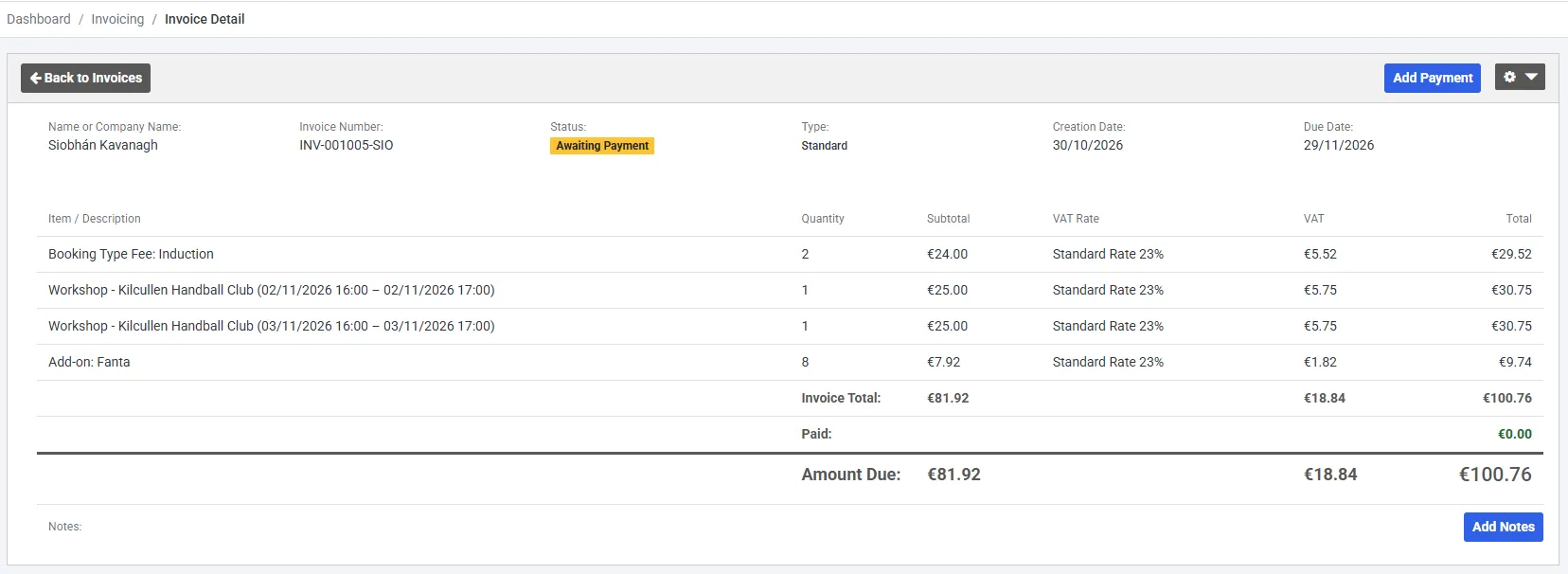
Each line shows Item / Description, Quantity, Subtotal, VAT Rate, VAT and Total.
The description names what generated the line - the space and its times, the booking type fee, an add-on - so an invoice reads back as the booking it came from.
Below the lines, three collapsible sections appear only when they apply:
| Section | What it means |
|---|---|
| Supplementary Invoices | Extra charges added after this invoice was issued. Shown as + |
| Deposit | A linked deposit invoice |
| Credit Notes | Reversals. Shown as − |
Then Invoice Total, any Payments, Paid, and Amount Due.
Cancelled and recalculated lines
Section titled “Cancelled and recalculated lines”A line marked Cancelled is struck through; one marked Recalculated has been superseded. Both stay visible rather than disappearing, so the invoice remains a full record of what happened.
The Notes field at the foot is free text, edited in place with the pencil, and appears on the invoice. Use it for a purchase order number, payment terms, or anything the customer needs to see.
You can set default notes that appear on every invoice under Settings → General, per module.
Transaction History
Section titled “Transaction History”Transaction History in the actions menu shows every money movement recorded against that invoice, with the balance before and after each one. It is the place to go when a total is not what you expected.