
Deposits
A deposit in Axiom is security against damage or a no-show, not a part payment. It is taken as its own invoice, separate from the booking’s, so it can be tracked and returned without touching what the booking itself cost.
Switching it on
Section titled “Switching it on”Under Settings → General, inside the Enable Invoicing block, separately for each module:
- Enable Deposit
- Default Deposit Amount
Invoicing has to be on for that module first - the deposit fields only appear once it is, because a deposit is an invoice and there would be nowhere to put it.
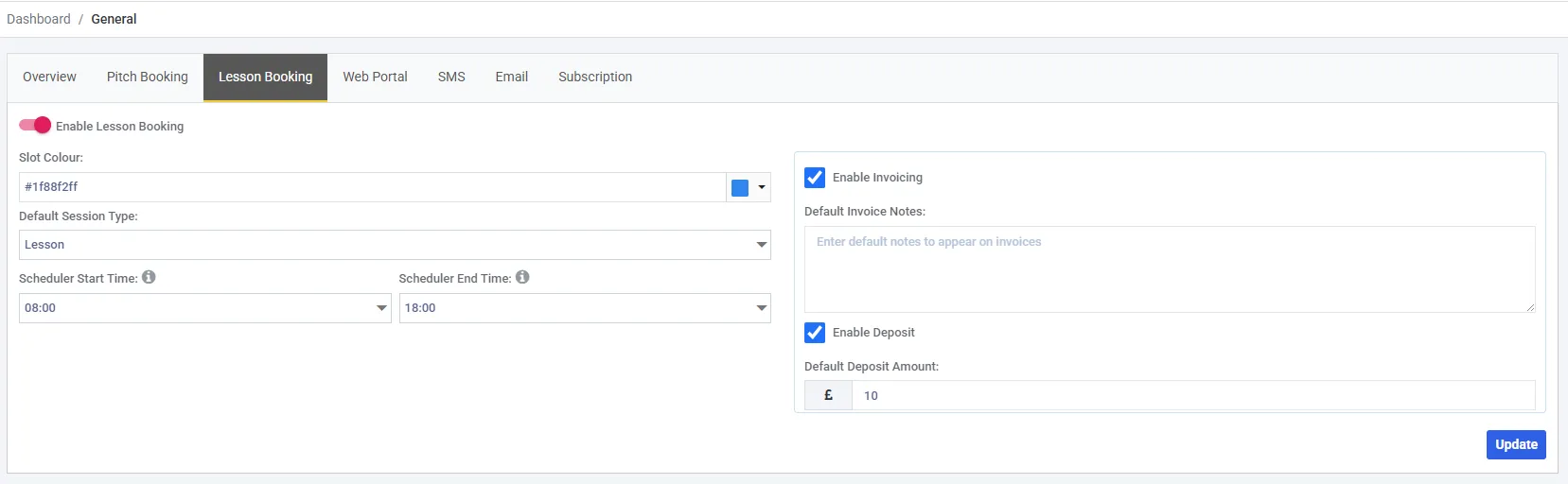
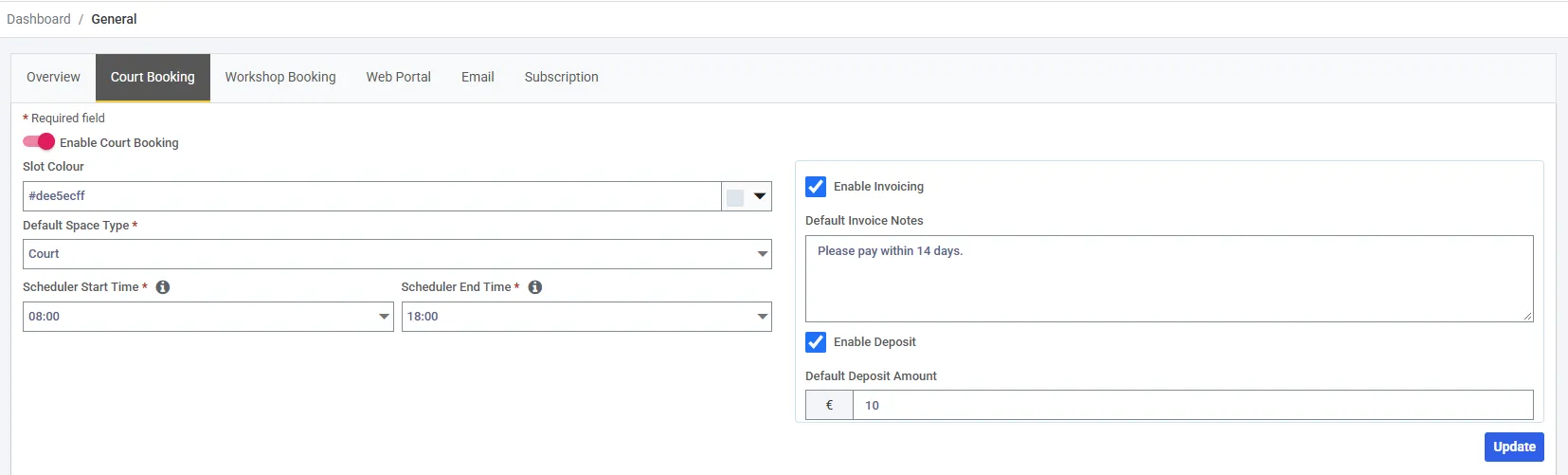
The deposit settings are nested inside Enable Invoicing, and appear only once it is ticked. Each module has its own tab and its own answer - the tab is named after whatever you call sessions and spaces, so it may not read Session Booking on your own screen.
One deposit per invoice, at one fixed amount
Section titled “One deposit per invoice, at one fixed amount”The amount is the same for every booking. There is no per-booking override and it does not scale with the value of the booking.
More importantly, a deposit follows the invoice, not the booking:
| Situation | Deposits raised |
|---|---|
| A one-off space booking | One |
| A weekly series billed on one invoice | One - not one per date |
| A session booking with six attendees | Six - one per attendee |
The deposit invoice
Section titled “The deposit invoice”Numbered DEP-001001-TRA, of type Deposit, and deliberately plain: a single line reading Deposit, no tax, and no notes field. A security deposit is not a supply, so there is nothing to break down.
Its due date is copied from the booking’s invoice.
Its life is tied to that invoice:
| When the booking’s invoice… | The deposit invoice… |
|---|---|
| is raised as a draft | is created as a draft alongside it |
| is issued | becomes Awaiting Payment and is payable |
| is voided (booking cancelled before issue) | is voided too, and zeroed |
Try to pay one before the booking has been confirmed and Axiom refuses:
A deposit payment cannot be recorded until the booking has been confirmed
That is the same review gate that applies to any draft. Until you have issued the invoice, there is no confirmed booking to hold a deposit against.
Taking the deposit
Section titled “Taking the deposit”Once it is Awaiting Payment it behaves like any other invoice - open it, choose Add Payment, record cash, cheque or card. The Payment Type is fixed to Deposit, and the two kinds of money are kept strictly apart:
A deposit payment can only be applied to a deposit invoice
A deposit invoice can only receive deposit payments
So a deposit can never be quietly absorbed into settling the booking, and a payment for the booking can never be mistaken for the deposit.
Customers paying through your portal pay the booking total and the deposit as a single card charge, and see the deposit itemised separately before they confirm.
Returning it
Section titled “Returning it”Refund Deposit appears on the deposit invoice once it has been paid in full. The panel opens in refund mode, pre-set to the amount held.
You can return less than was paid - type a smaller figure if you are withholding part of it for damage. The balance stays showing on the deposit invoice as money you have kept.
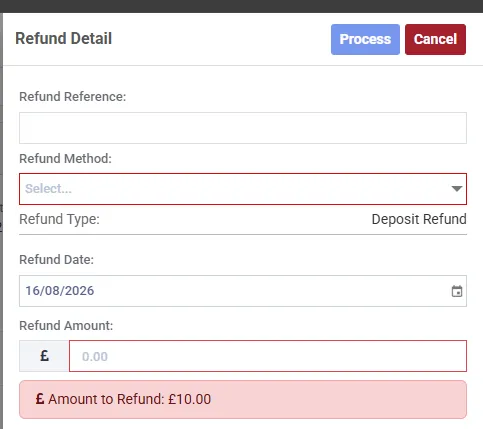
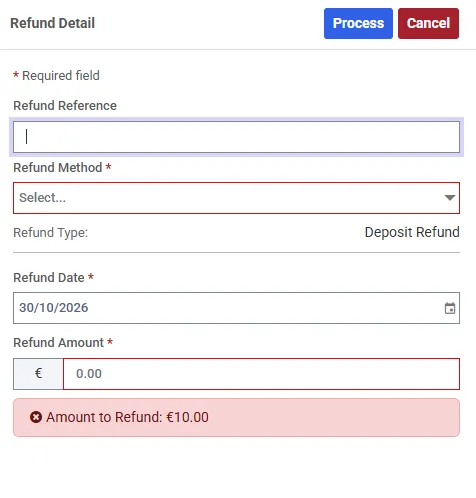
Refund Type is fixed at Deposit Refund and cannot be changed - a deposit can only ever be returned as a deposit. The bar at the foot is the full amount held, and typing less than it is how you withhold part.
| You refund | The deposit invoice becomes |
|---|---|
| The full amount | Complete |
| Part of it | Part Paid |
Following the money
Section titled “Following the money”Transaction History on the deposit invoice records the three events by name - Deposit Invoice Created, Deposit Added and Deposit Refunded - each with the balance before and after.
Finding a deposit invoice
Section titled “Finding a deposit invoice”Deposit invoices do not appear in the Tools → Invoicing list, which shows standard invoices only. Open the booking’s invoice and click through the DEPOSIT section.
Related
Section titled “Related”- Invoices - the invoice screen and its collapsible sections
- Recording payments - the payment and refund panel
- Taking card payments - connecting Stripe
If something is not covered, get in touch and we will help directly.